File Viewer in CAESES
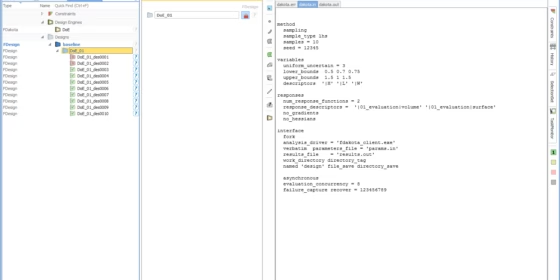
We have noticed that some of our users are not really aware of the possibility to check the log files (input/output/error) of optimization runs. For automated studies, you can e.g. make use of the method set of Dakota for which we have implemented an easy-to-use interface in CAESES®. For each design engine run, a set of log files is stored in the run directory of the project, and these files are also available in the CAESES® user interface.
Select the Base Design
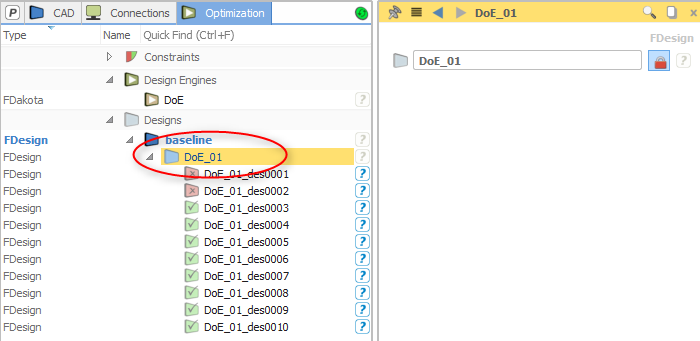
So this is how it works: First, select the base design of the run in the object tree (tab “optimization”):
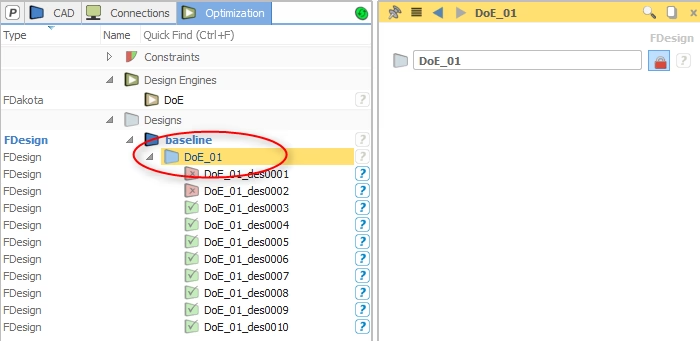
Select the base design with a single click
Central Widget: File Viewer
Second, select the “connections” tab in the central widget to take a look into the file viewer and the files that were generated during the Dakota run. You always find the file viewer in this “connections” tab because CAESES® also shows input and output files of external software in this viewer (i.e. files from “connected” software). Here is a screenshot of the file viewer:
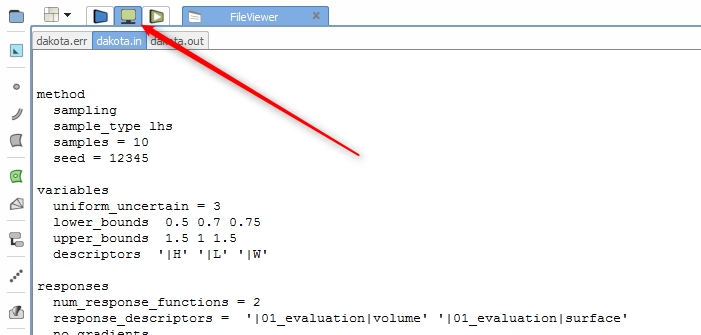
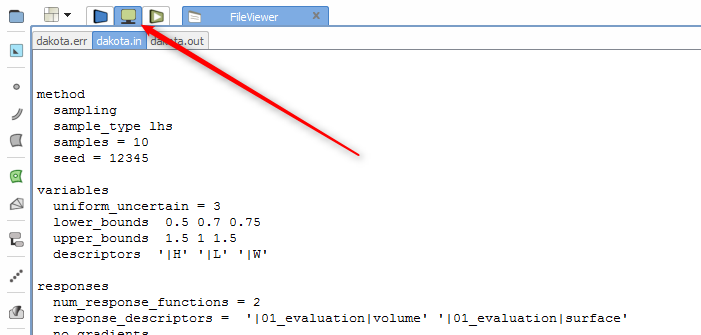
File viewer in the connections tab
This makes it very convenient to take a quick look into all these ASCII files without switching to the file explorer of your OS. Sure, this is not the very first thing to know when you start using CAESES®, but another little piece that makes CAESES® a full CAE integration package that takes care of everything.
More Information
Do you like this post? Browse through our blog section and find more interesting CAESES® pieces …