Colored IGES and STEP Formats for STAR-CCM+
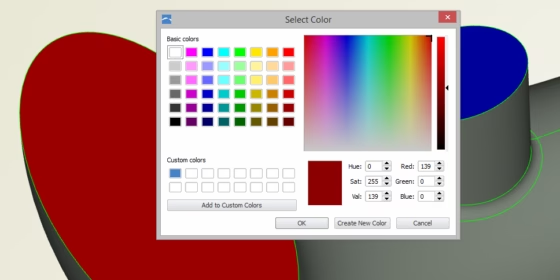
With version 4.1.1, CAESES® supports some kind of “colored” IGES and STEP exports. The idea is to detect groups of patches with unique names in meshing software which is particularly important for automated processes (i.e. design studies and shape optimizations). CAE packages like STAR-CCM+ from CD-adapco can detect surface patches by their names. CAESES® now writes the color name of a trimmed surface (brep) as the patch name into the export file. This is how it works:
Step 1: Create and Assign a Color
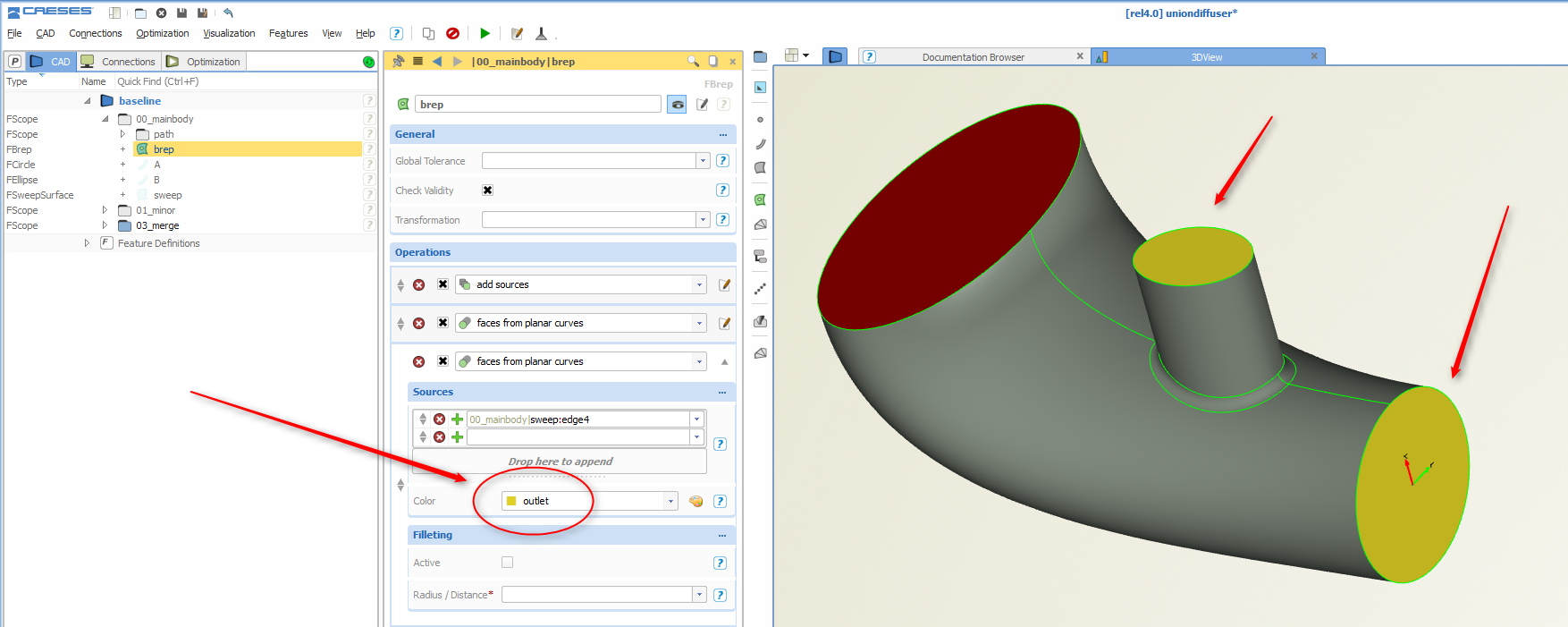
Just create a new color with an individual name (e.g. “outlet”) and assign this color to a brep operation or a surface patch (click on the images to enlarge them):
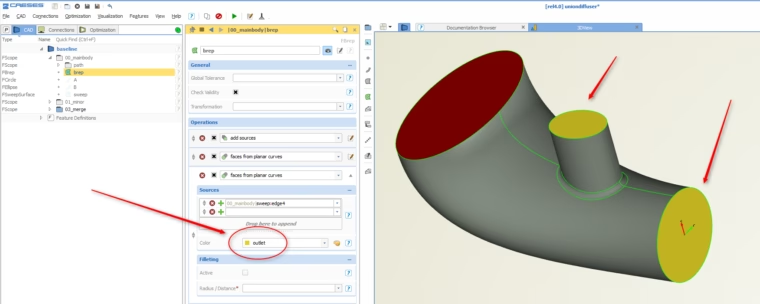
Assign a color with the name "outlet" to the patches
Step 2: Export
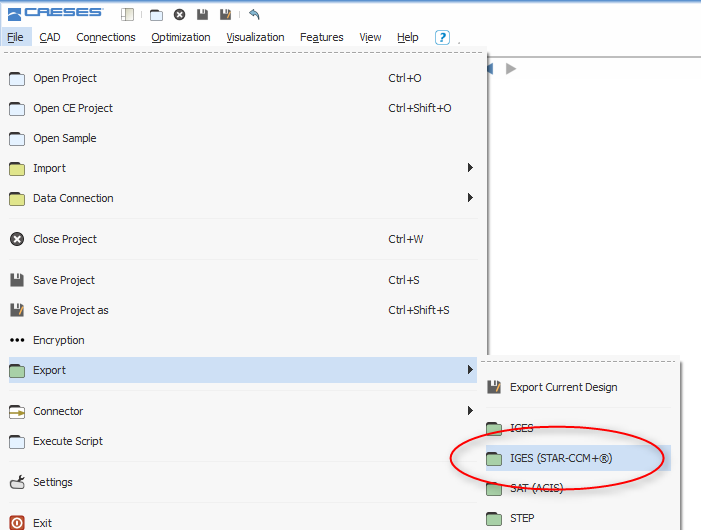
There are two new export options in the menu of CAESES® that are dedicated to STAR-CCM+ (IGES/STEP). Just export your geometry by using this new exports. They are also available in the software connector for integration of STAR-CCM+ into CAESES®.
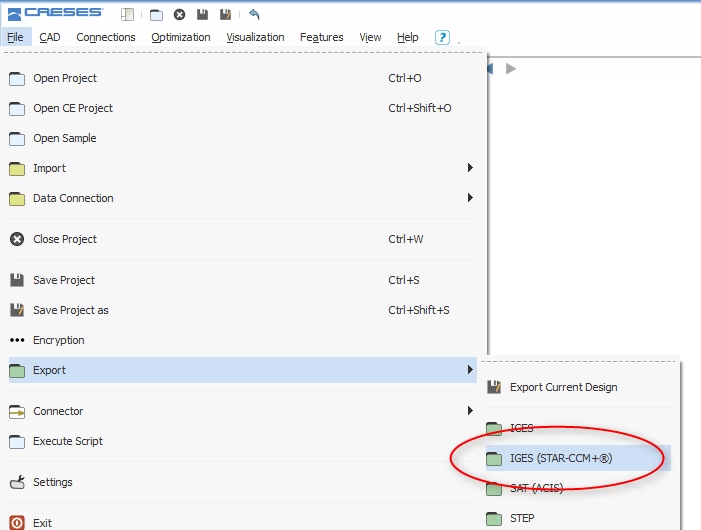
New export option in CAESES
Step 3: Import it into STAR-CCM+
The exported geometry can then be imported into the CAD modeler of STAR-CCM+. The surface patches are automatically detected by their names which correspond to the color information in CAESES®. The following screenshot shows such an import where the color name in CAESES® was previously set to “outlet”:
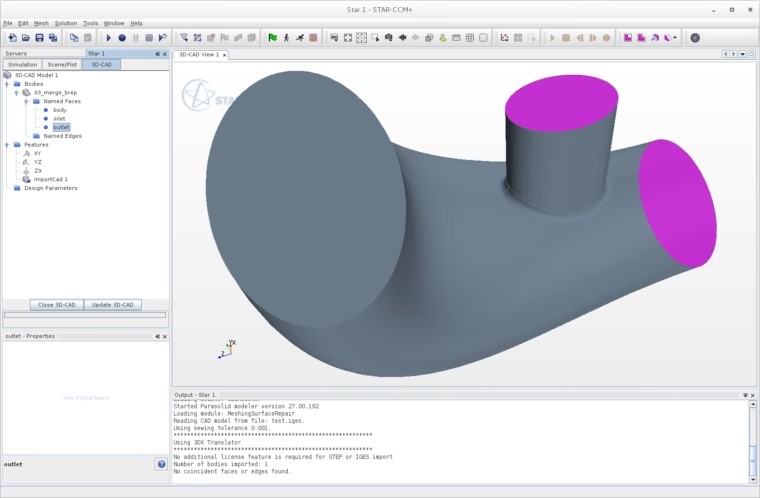
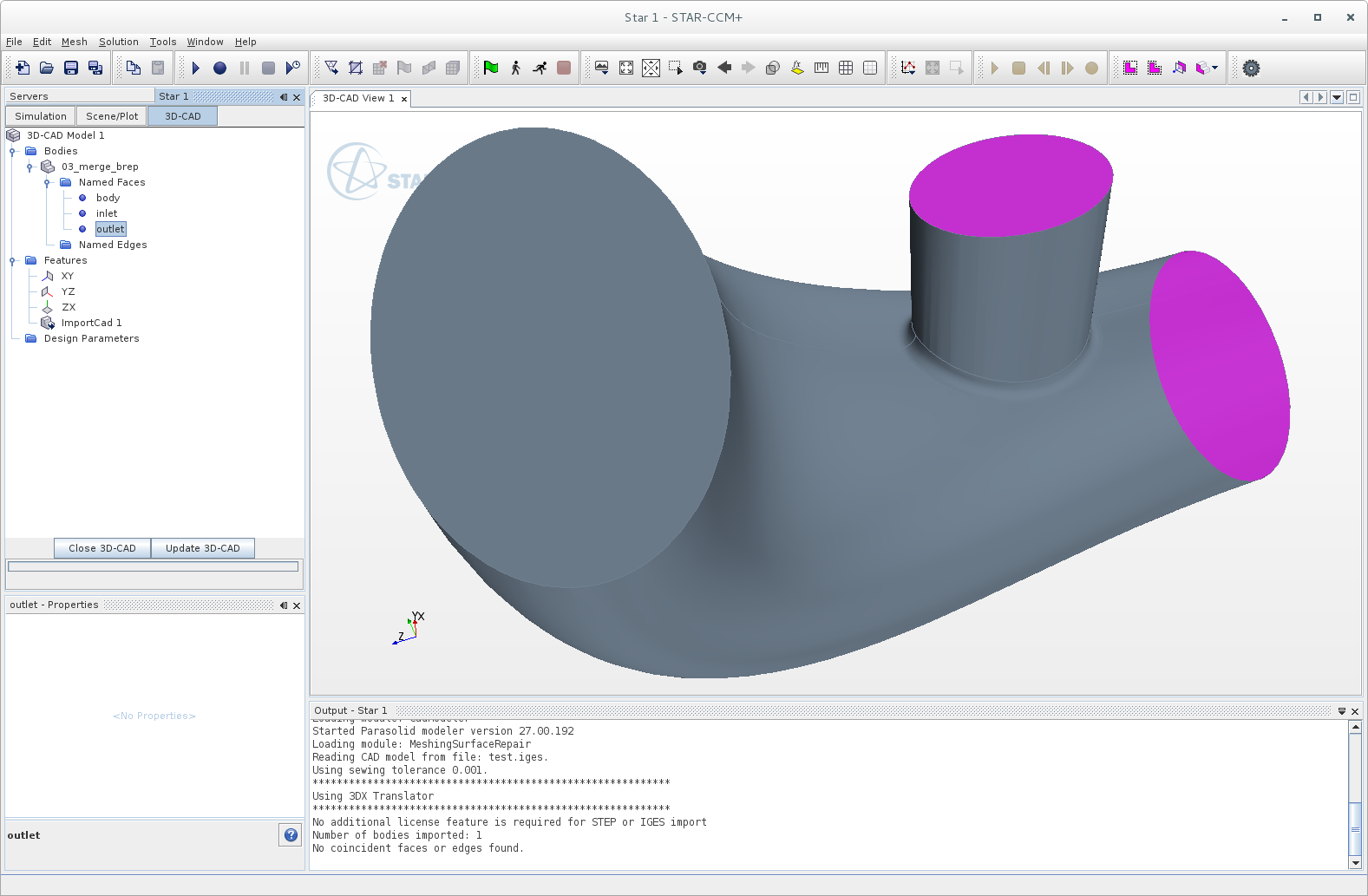
Both outlet patches are directly detected and grouped
More Information
We have found this new export option pretty helpful, and we look forward to receiving your feedback on it! If you like to find out more about CAESES®, then just browse through our product pages, and simply drop us a line if you have any questions.