Shape Optimization in ANSYS with CAESES
CAESES® allows you to access and control the robust CAESES® geometry models within the ANSYS Workbench, to conduct simulation-driven shape optimization.
New CAESES App
There is a new CAESES®-ANSYS app that allows you to plug any CAESES® geometry model into the user interface of the ANSYS Workbench. With just a few clicks you are ready to run large studies, such as design of experiments and formal optimizations including efficient surrogate-based optimizations — everything fully automated.
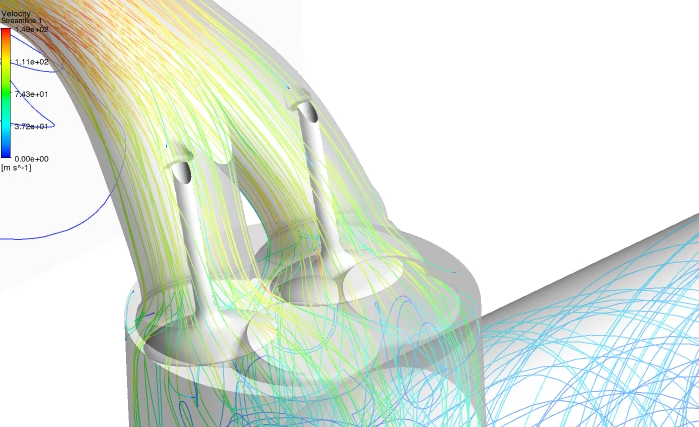
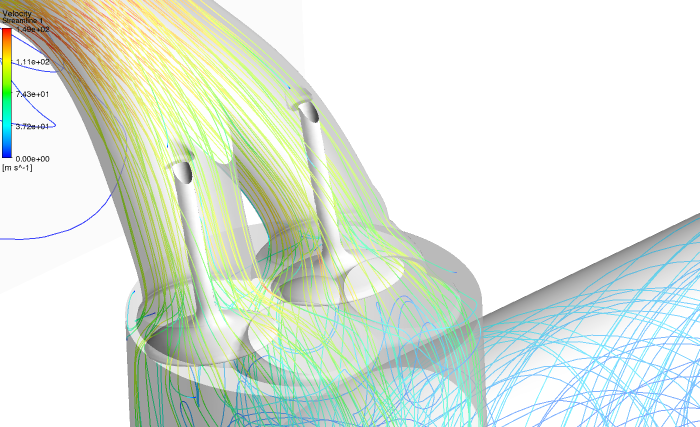
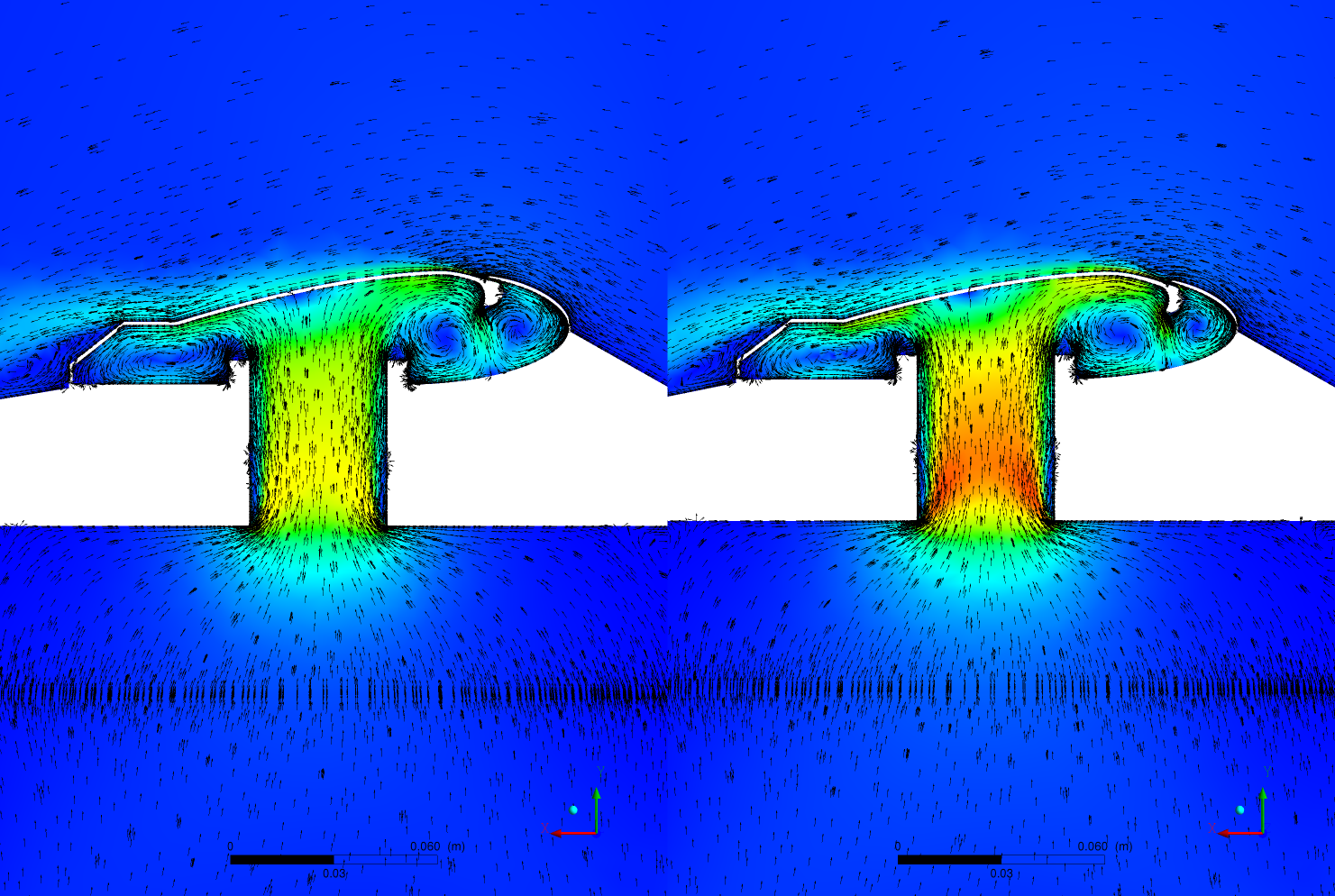
Shape optimization of intake ports in ANSYS: How to find the best design candidate?
Shape optimization of intake ports in ANSYS: How to find the best design candidate?
Optimization of Complex Geometries
There is no need to learn something new if you are use to the ANSYS Workbench. At the same time, you can directly benefit from the efficient and robust geometry models of CAESES® without any scripting efforts. Just plug them into the ANSYS Workbench and use drag & drop actions to make it run. This new integration focuses on any kinds of geometries, from any application. CAESES® customers often deal with rather complex geometries that are exposed to flow such as ship hulls, propellers, rotors and stator blades, ducts, manifolds, exhaust systems, turbines and many more. A recent example for a complex shape is shown below in the animation of a parametric shear head. Traditional CAD tools often fail to re-generate new design candidates of such complex parametric models in automated processes.
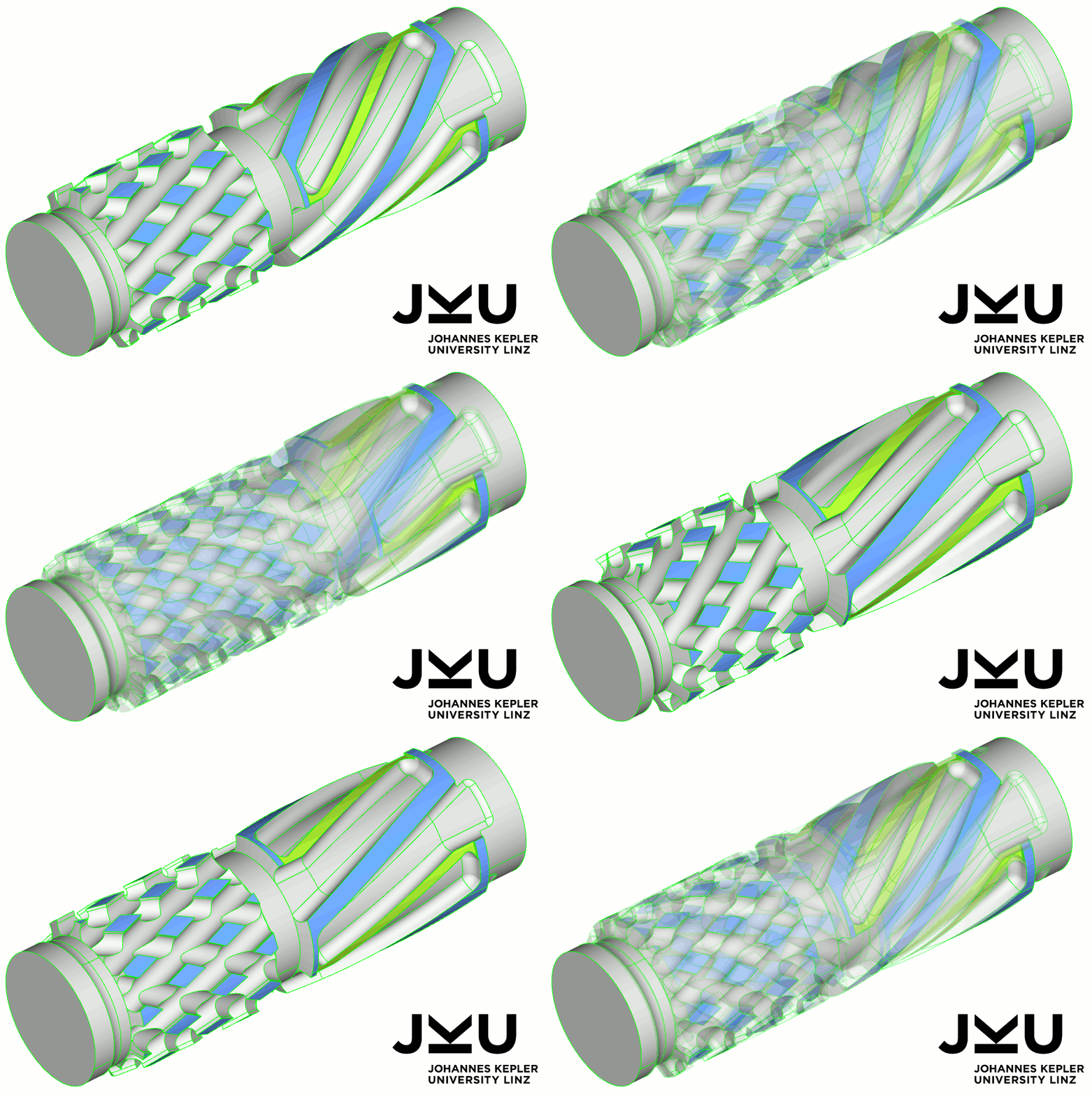
Complex shear head geometry for polymer injection molding: Variable and 100% robust CAESES model for automated studies
Preparation in CAESES
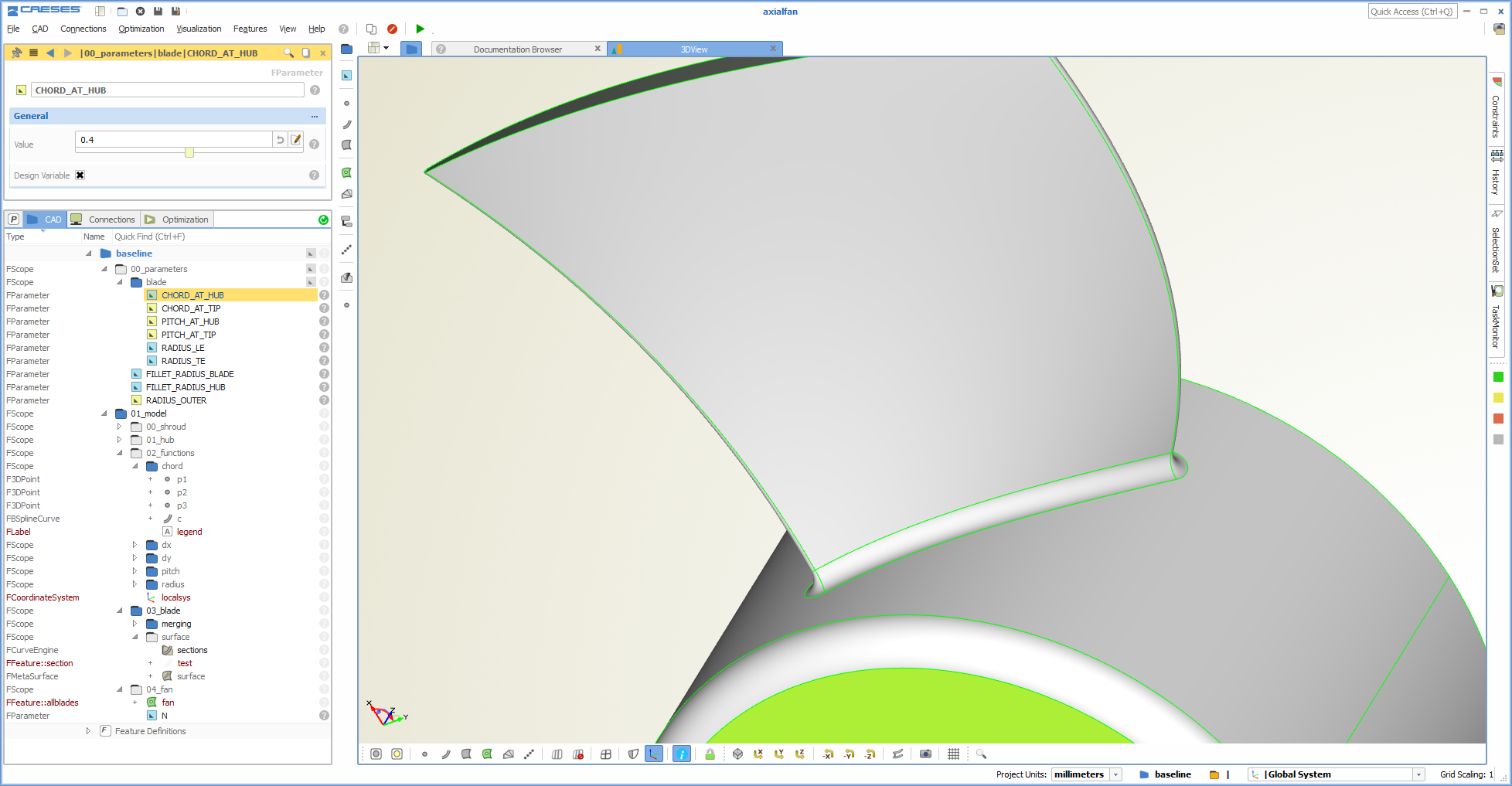
So how does this new connection actually work? First of all, you have to make sure that your CAESES® geometry model is ready with a set of design variables that control its shape. In a next step, configure the exported geometry: This exported file needs to be an ACIS (*.sat) file which contains additional information for repeatedly identifying the different geometry parts. Finally, export a so-called *.fsc control file of the setup via the CAESES® file menu (file > export > fsc file).
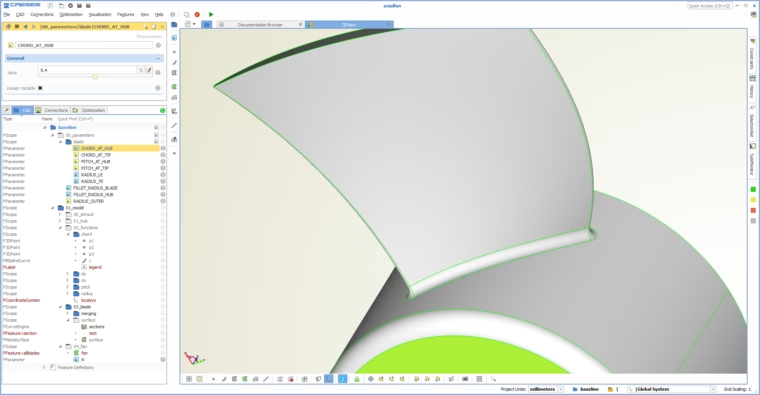
Setup of a parametric geometry model in CAESES with design variables
Named Selections
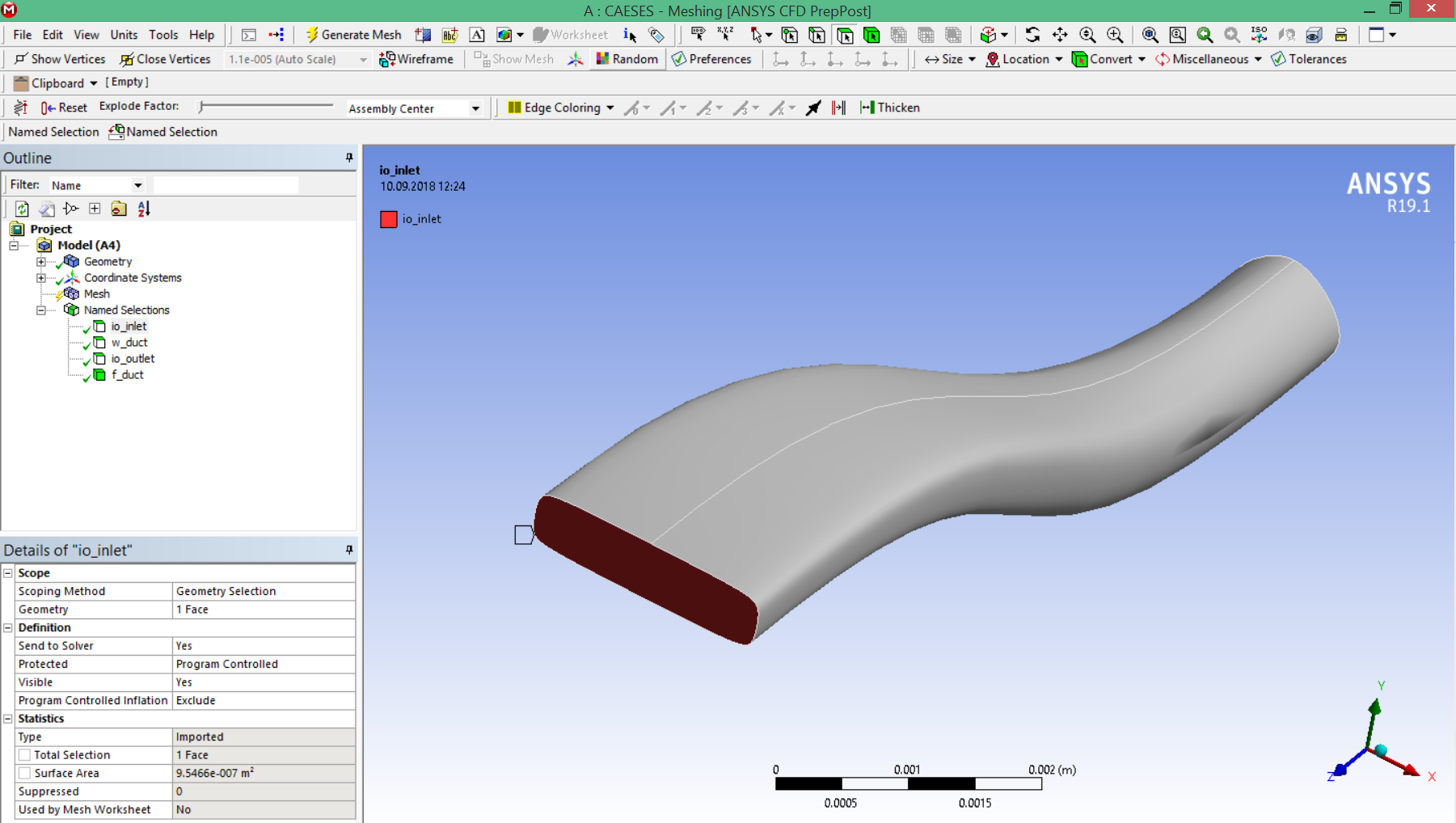
You can assign colors with user-defined names to the individual faces in CAESES® which are then transferred into the ANSYS Workbench as identifiers. This is required to automate the meshing procedure where you have to reference the different patches of the model (by using “named selections”). You can find more information about patch coloring in the section simulation-ready geometry. The color names are later shown in the ANSYS mesher and the ANSYS DesignModeler.
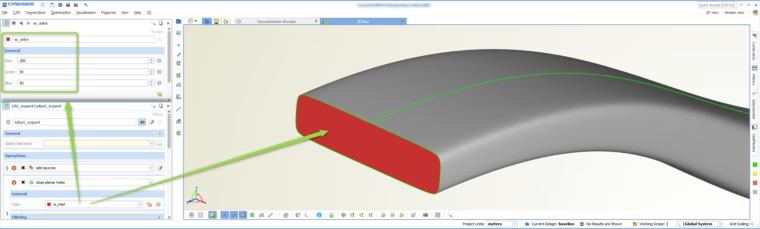
Assign colors in CAESES with specific names to prepare the named selections
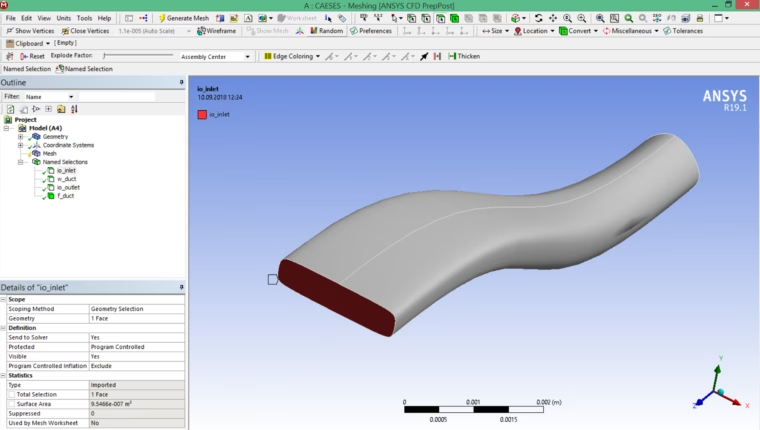
These identifiers (e.g. io_outlet or w_duct) will be automatically transferred to the ANSYS mesher and the ANSYS DesignModeler
Shape Optimization in ANSYS
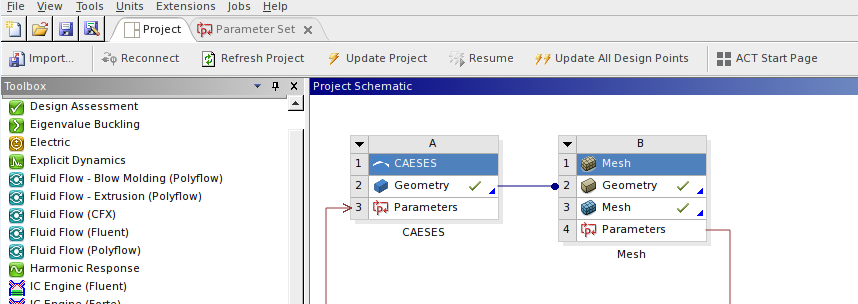
In the ANSYS Workbench, you have to install the CAESES®-ANSYS app (ACT extension) to make CAESES® available as a component in the ANSYS Workbench. Load the *.fsc file through the CAESES® component and update it. The generated geometries get exported and are loaded into the ANSYS Workbench automatically using the export format you choose in CAESES®.
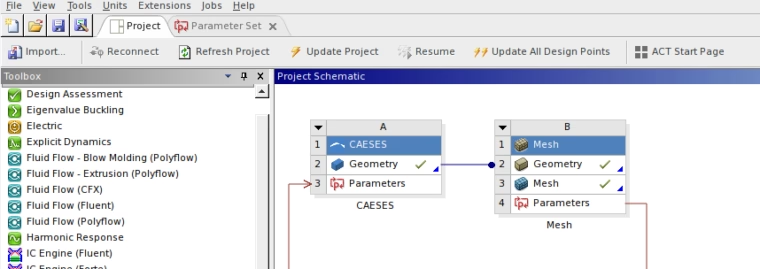
Automate the geometry generation by using the CAESES-ANSYS app[/caption] After the update of the CAESES® component in the ANSYS Workbench, the design variables of the geometry are automatically shown in the parameter set. New design candidates can now be generated by changing these parameters, either manually or by optimization tools (in-built strategies from ANSYS, optiSLang etc.).
For All ANSYS Products
No matter which CAE task you have to solve (e.g. CFD, structural analysis etc.) or which product you actually use (e.g. ANSYS FLUENT, ANSYS CFX or ANSYS Mechanical) — this new connection works for all of them.
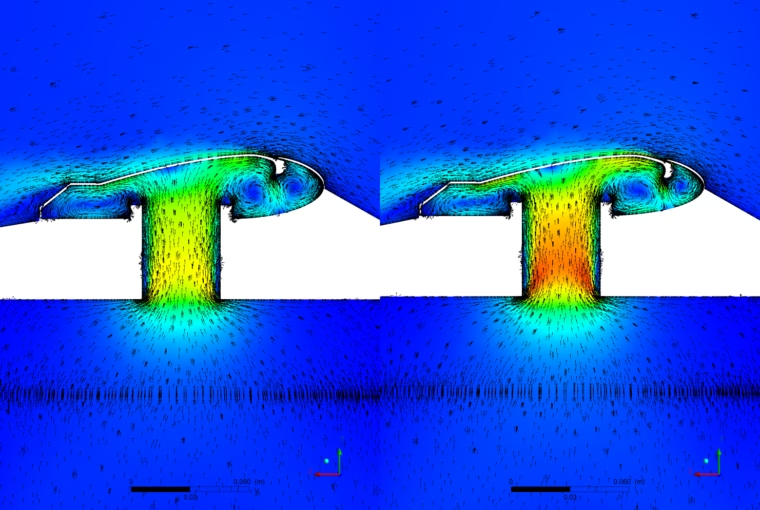
Conduct automated shape optimizations in ANSYS Workbench and compare the performance of different design candidates
ACT App Development
We have worked together very closely with CADFEM GmbH in Berlin to develop this connection between CAESES® and the ANSYS Workbench. In the fist stage, our engineers got a 3‑days training from CADFEM to understand how the ACT technology of ANSYS works. Since ACT is quite intuitive and comprehensive, we were able to finalize the core requirements of the CAESES® app within these 3 days in a joint effort. Back in the office, we developed the app a bit further to make sure the named selections work and can be automated. In addition, we had to implement workflows with 2D geometries and shared topologies. Right now, we are distributing the add-on to our existing customer base to apply it in a variety of workflows and applications. The new CAESES® app can be downloaded from the ANSYS app store. Once again, thanks a lot again to the guys from CADFEM which provided very efficient support with the ACT development!
Tutorial
There is a tutorial available that gets shipped with the software CAESES®.
Download Tech Brief
A short summary of the CAESES®/ANSYS integration capabilities can be found in this tech brief (PDF).
About CAESES
CAESES® is a software product that combines unique CAD capabilities for simulation engineers with tool automation and optimization. Users connect their simulation package to CAESES® or vice versa as described above. The focus of CAESES® is simulation-ready geometries and the robust variation of these geometry models for faster and more comprehensive design studies and shape optimizations. The design variables of a CAESES® geometry model can be controlled either in the CAESES® GUI or through a script to run CAESES® in batch mode, which also happens automatically for this new CAESES®-ANSYS app. See the product pages for more information. CAESES® is used by leading companies all over the world.