How to Check the Fitness of Your Geometry Models
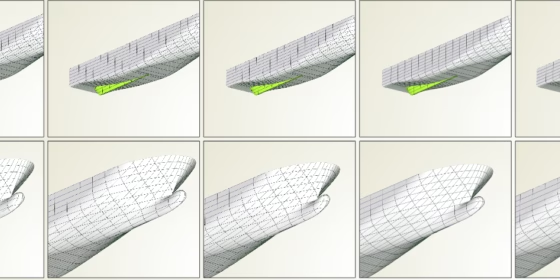
Have you ever thought about the fitness of your geometry models? When you are preparing parametric geometry models for automated workflows, you need to make sure they are robust and do not break during variation. For complex models with a lot of trimming and Boolean Operations as well as fillets, there is a good chance that critical geometry shapes lead to problems. In addition, there are typically constraints that you need to consider (e.g. minimum thicknesses or distances to keep, volumes, hard points etc.). New design candidates should not violate these constraints.
Varying, varying, varying!
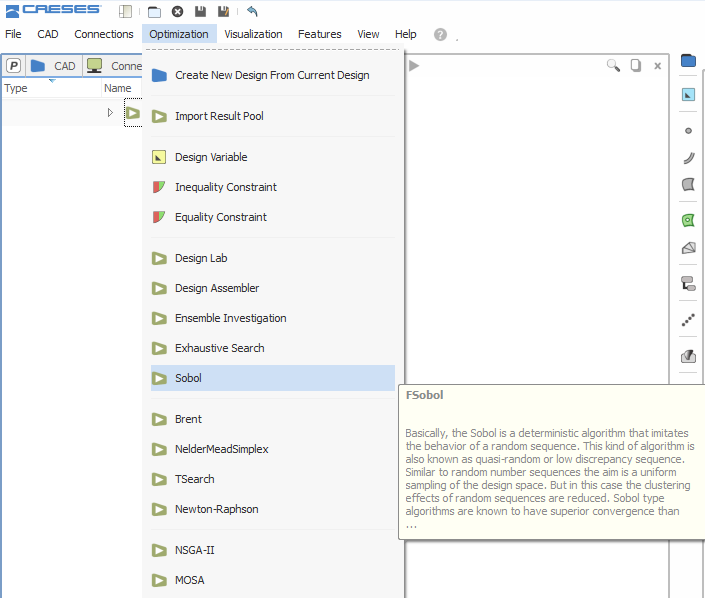
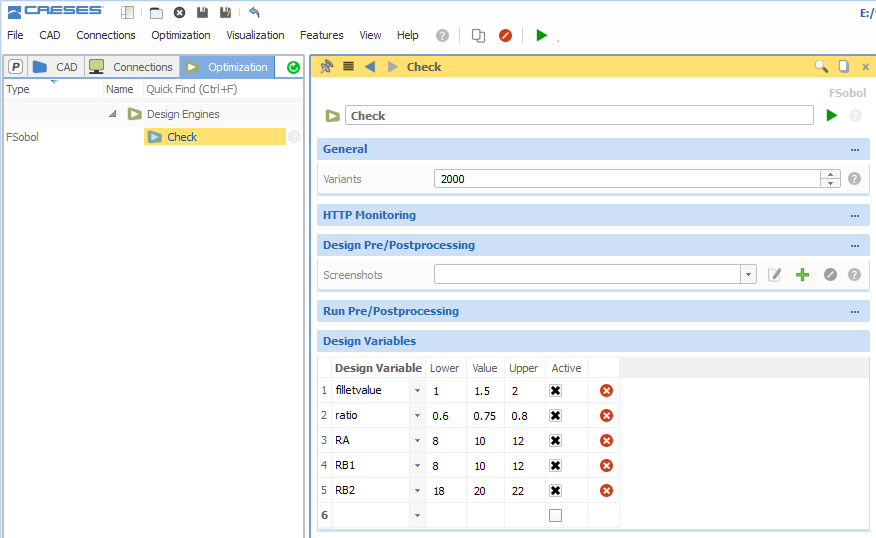
It’s sort of a natural thing that you vary your parameters (also called design variables) and see how the model behaves. You can do this manually in the first stage, to get an impression of the shape changes. In order to be sure your model does not collapse or violate constraints for certain parameter configurations, you need to check a larger set of design variants. In CAESES®, there is an inbuilt mechanism to do a robustness check of your model. From the optimization menu in the graphical user interface, you can choose a sampling method to create your design set. The design variables along with their lower and upper bounds can be set which will be varied by the strategy.
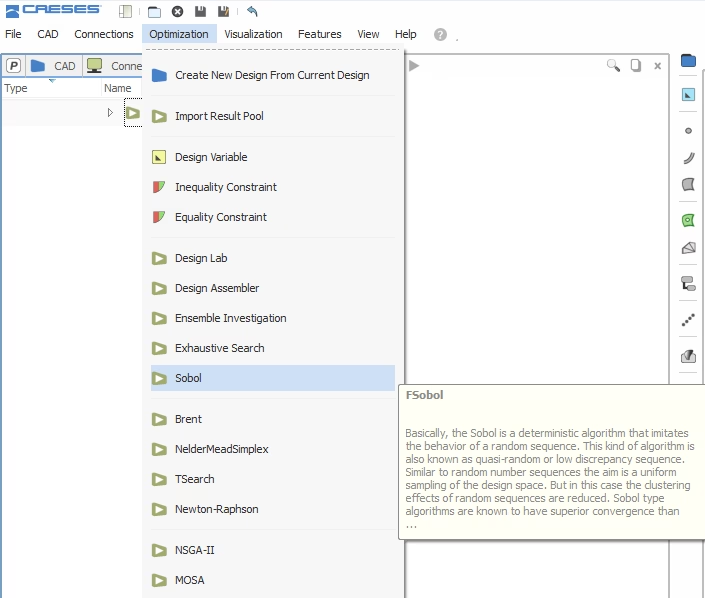
Choose a sampling method from the menu
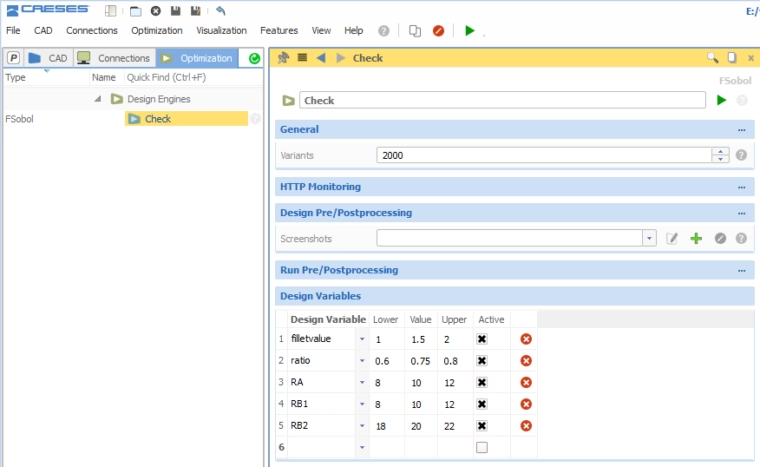
Configure your design variables, i.e., set lower and upper bounds and the number of variants you want to generate for the check
Visual Check
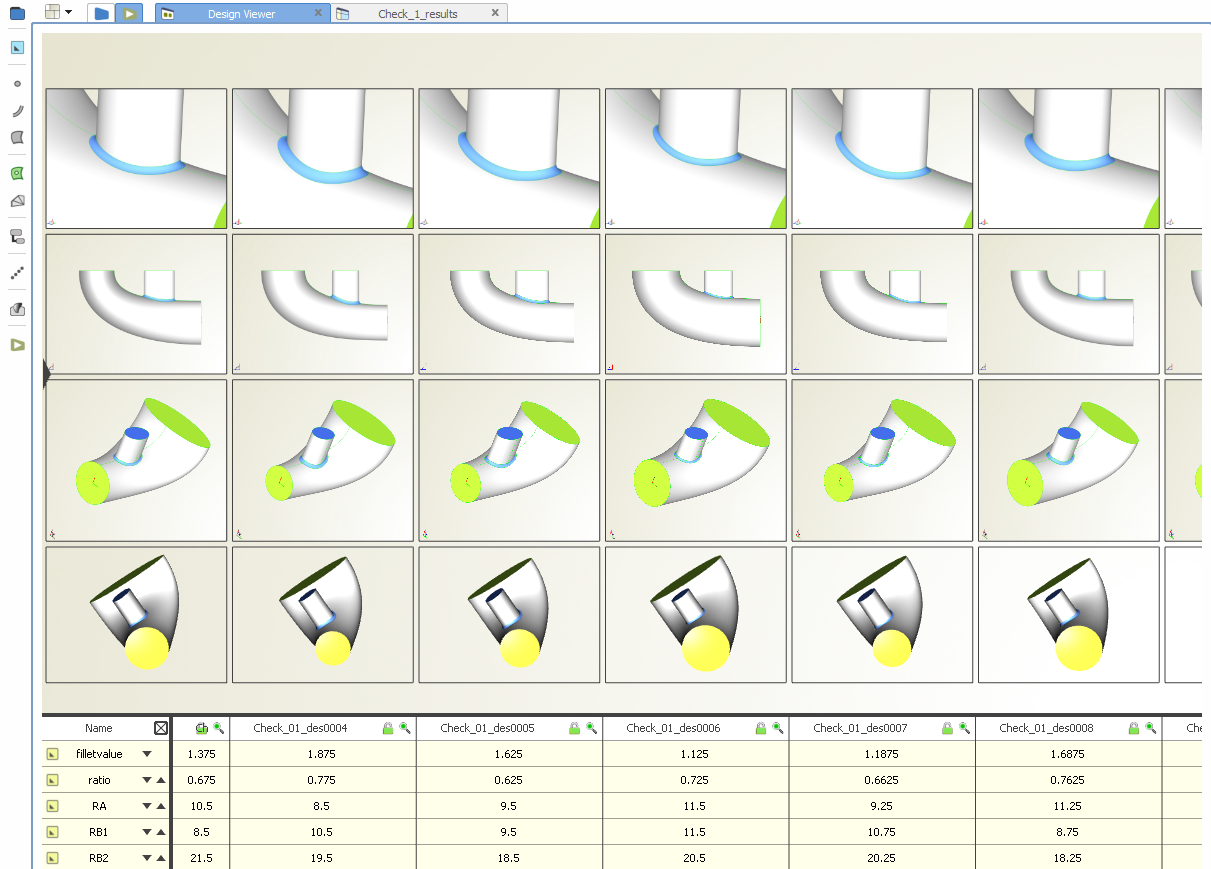
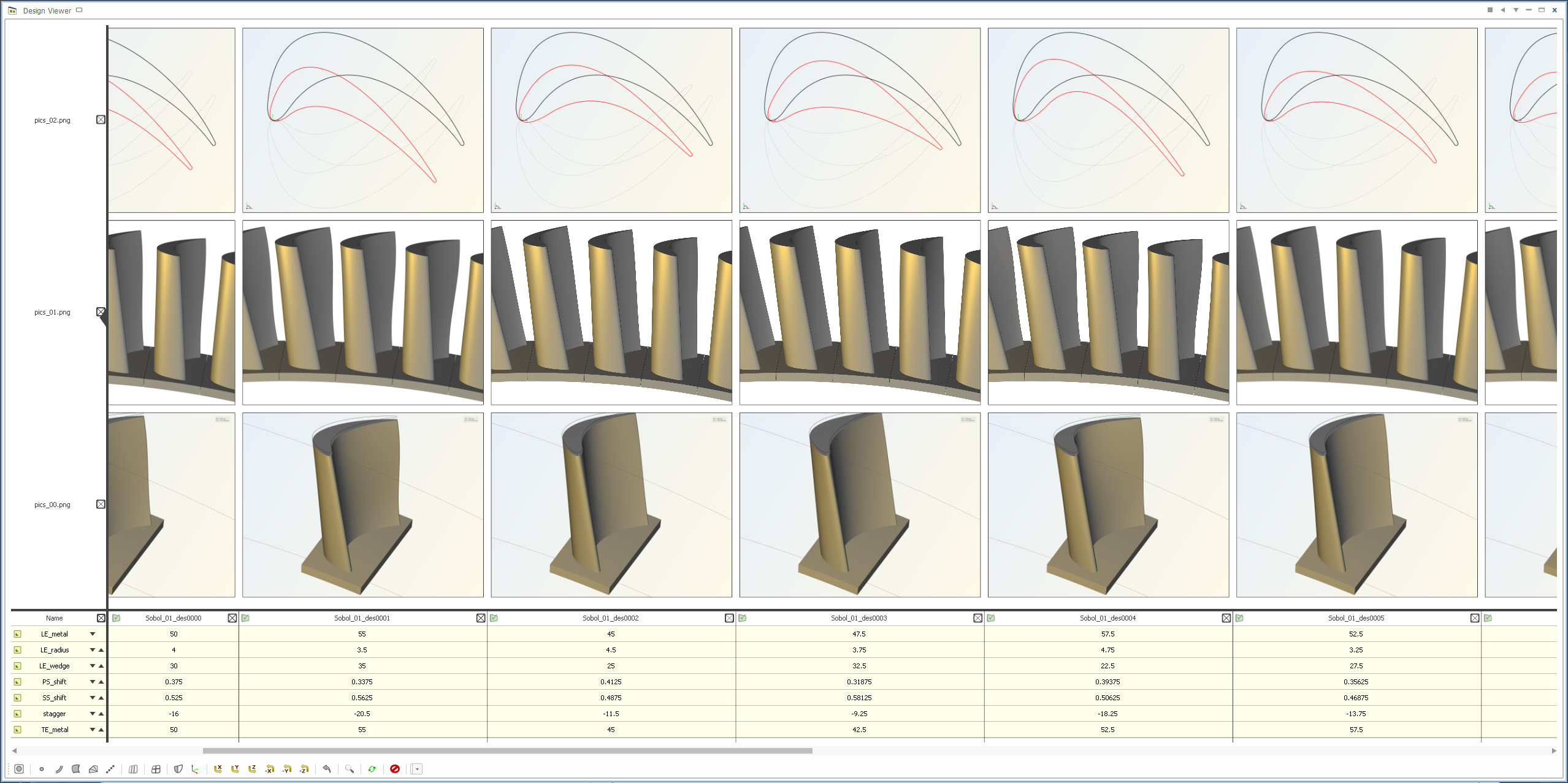
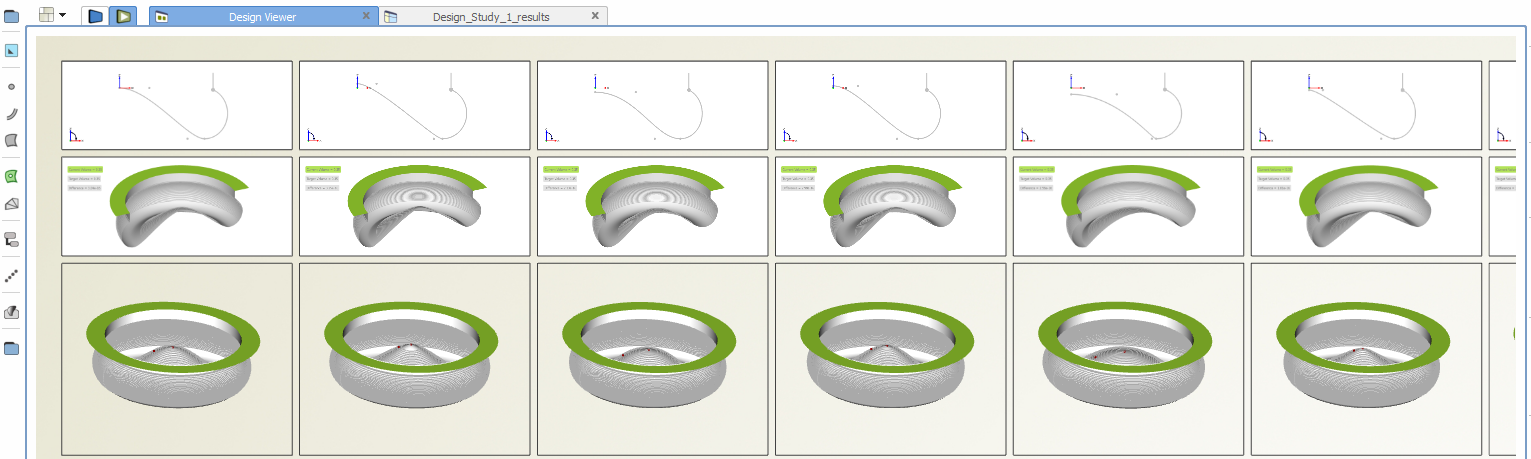
For each sampling (and optimization) method, you can configure a screenshot collection. It gives you the possibility to create different screenshots of your geometry from different angles and for different zoom levels. After the sampling, the Design Viewer window shows all these pictures, plus an interactive 3D geometry to take a closer look at each generated variant.
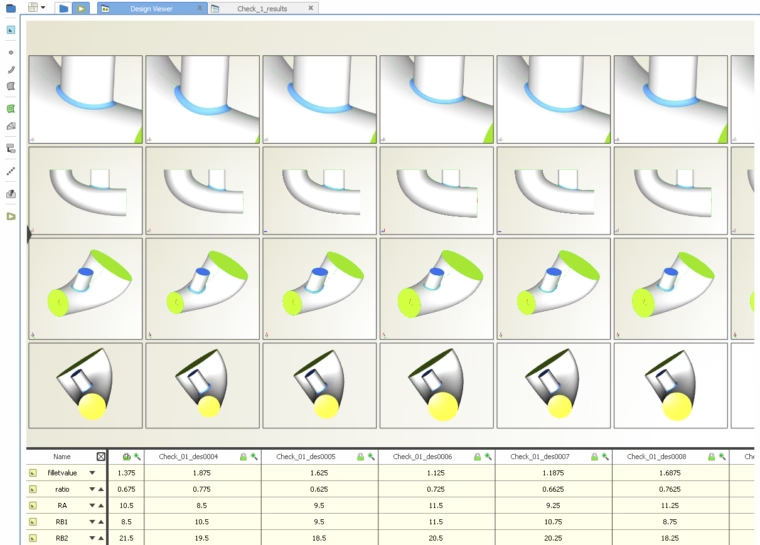
CAESES design viewer: Shows all generated geometry variants as a side-by-side comparison
Numerical Check
CAESES® gives you the possibility to create expressions in parameters to check certain geometry quantities. For instance, you can check
- the volume of a closed body,
- the area of a body or surface,
- the number of open and closed edges
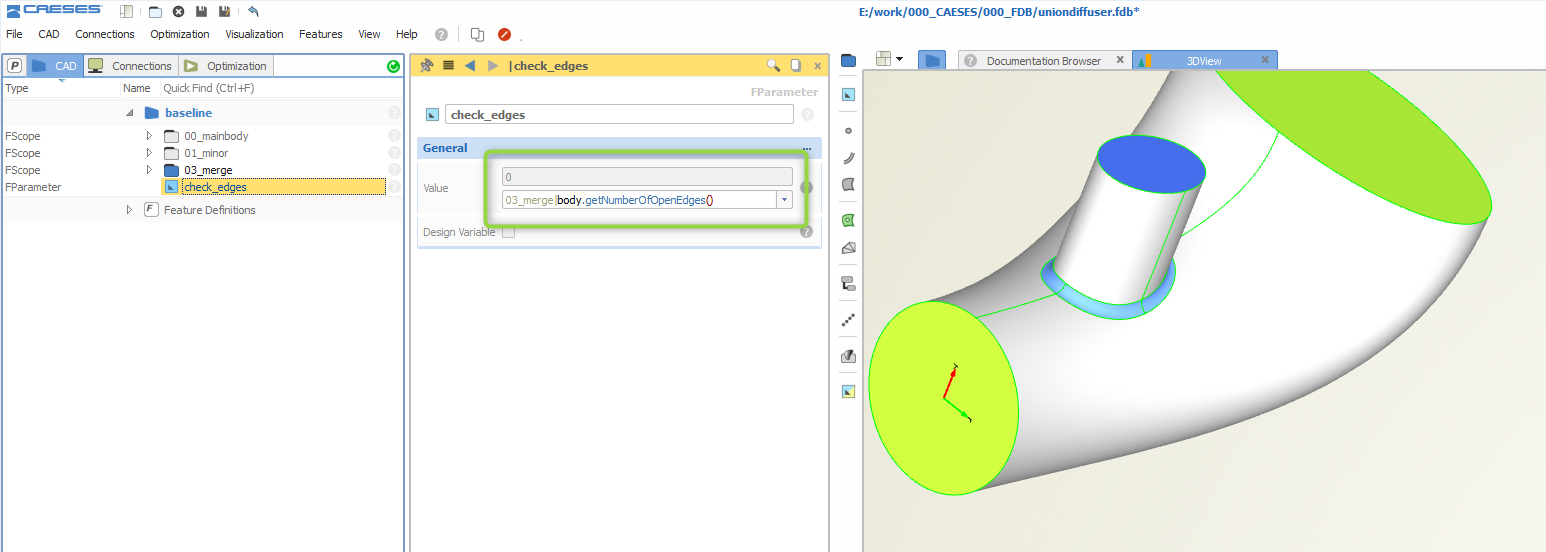
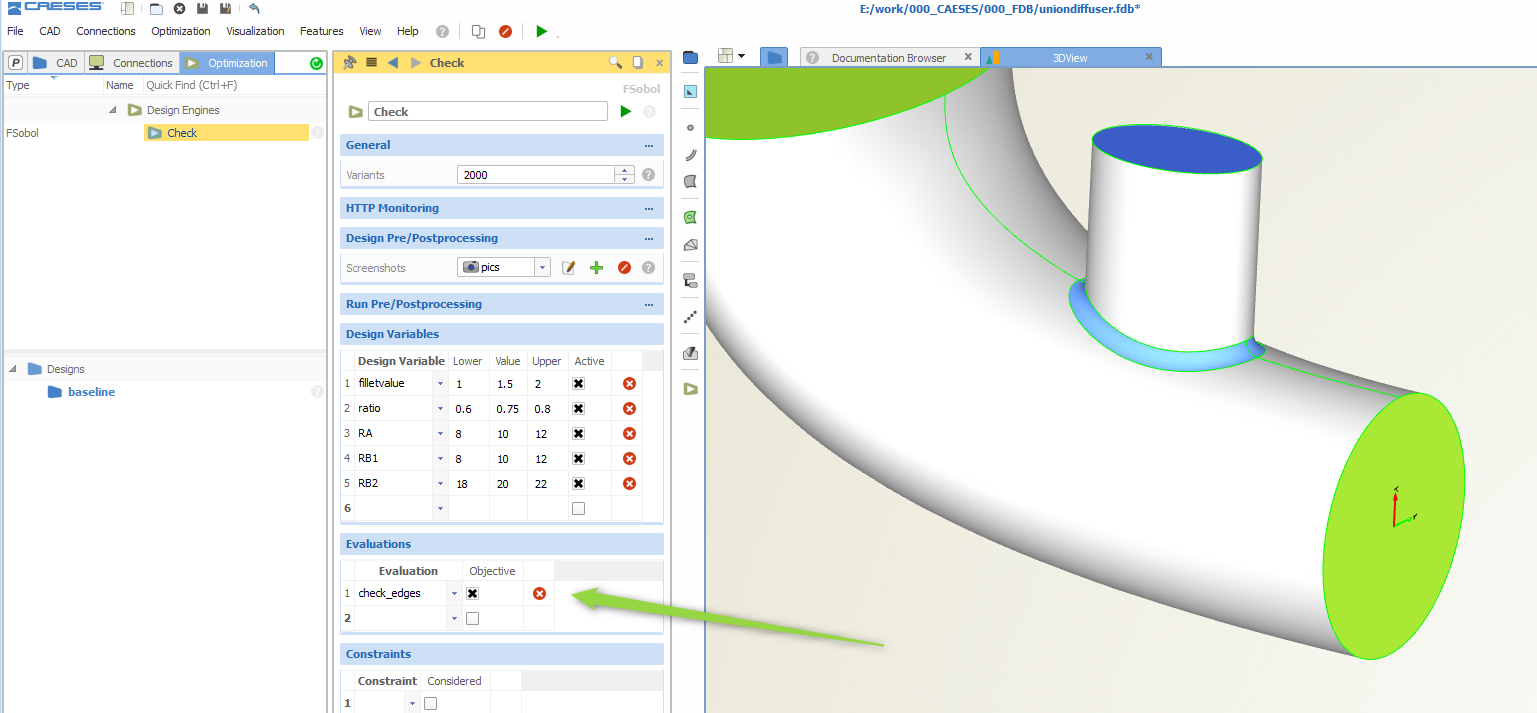
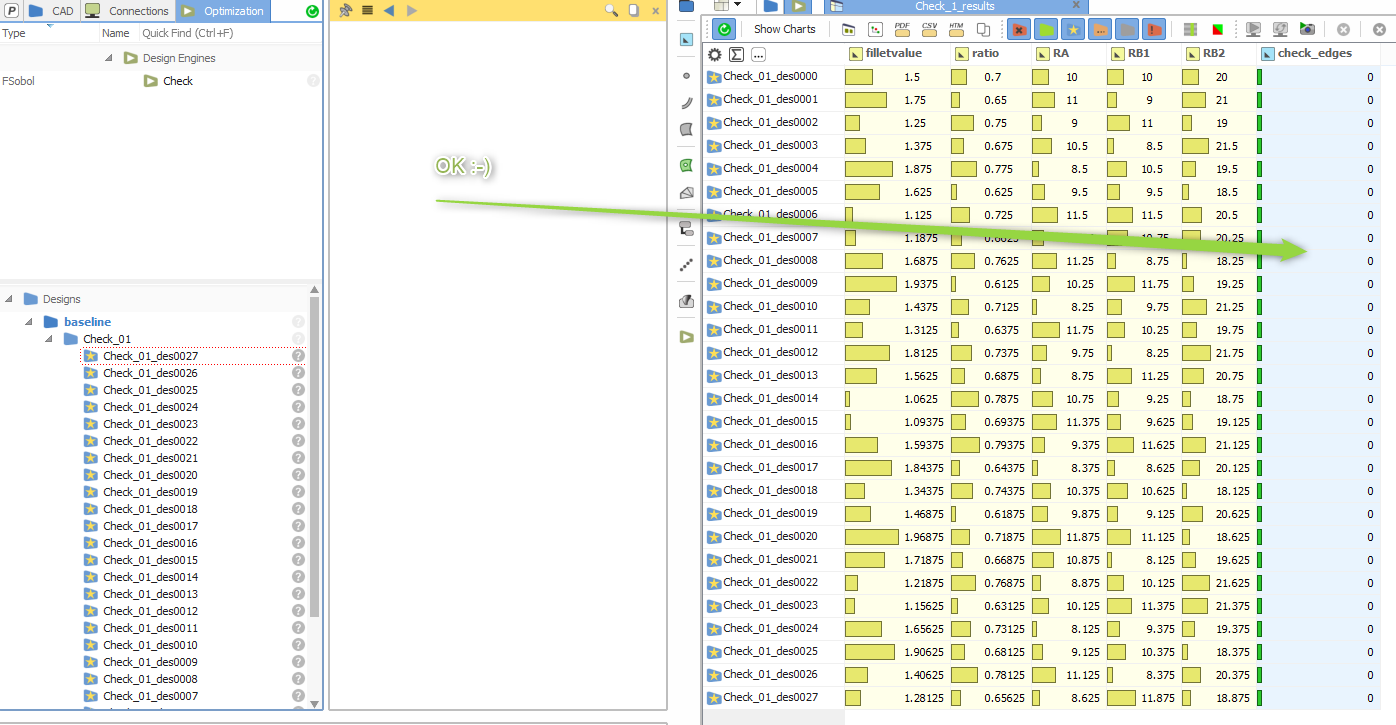
and many more. You can involve such a parameter in your sampling method to monitor these values. As an example, if you are always expecting a closed body, the number of open edges should be zero. If this is not the case, you know that something goes wrong and your model is not robust for some reasons.
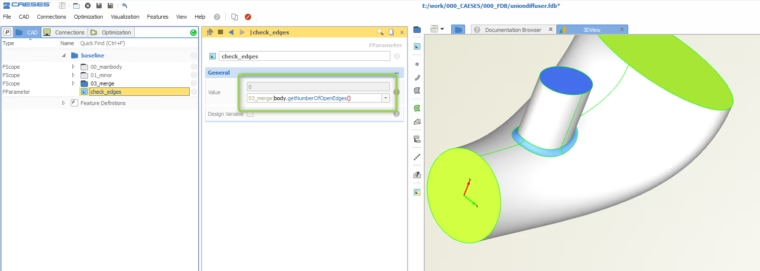
Create a parameter that checks the number of open edges - needs to be zero for a closed body[
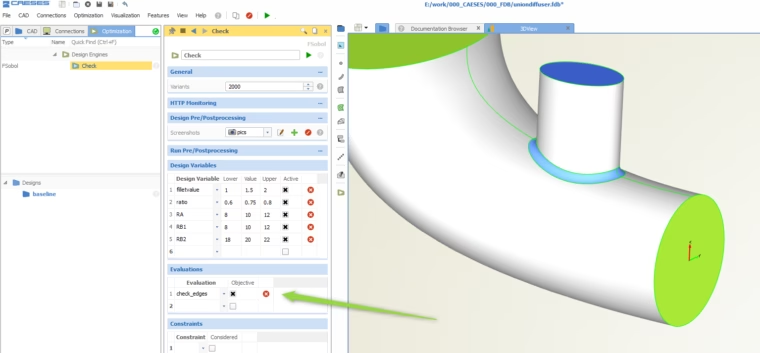
Add this evaluation to the sampling method
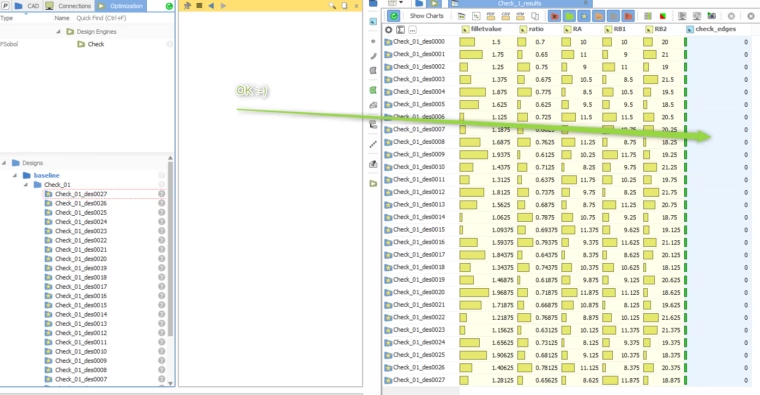
For all generated designs, the parameter is zero (always a closed body)
A Few More Examples
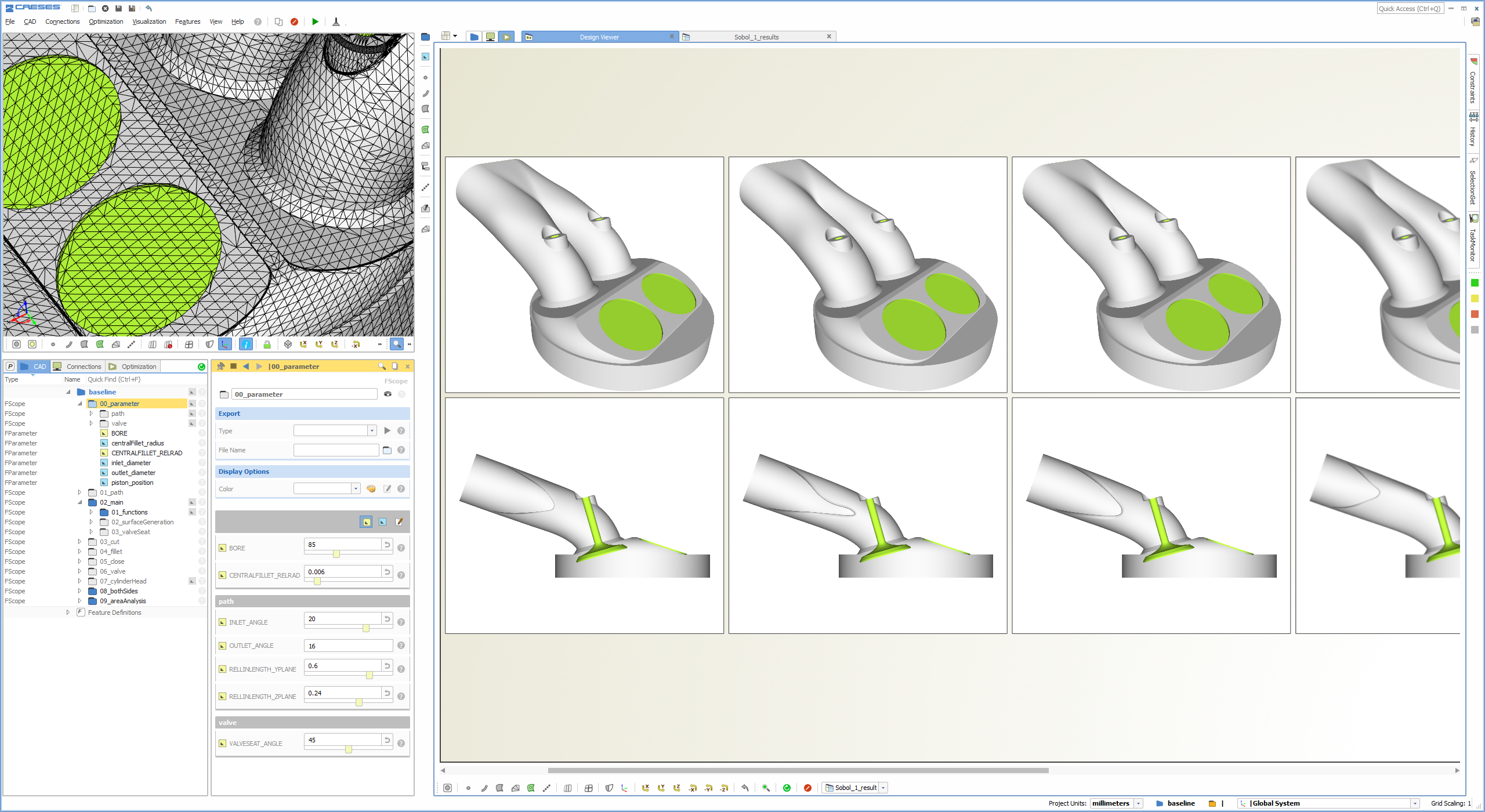
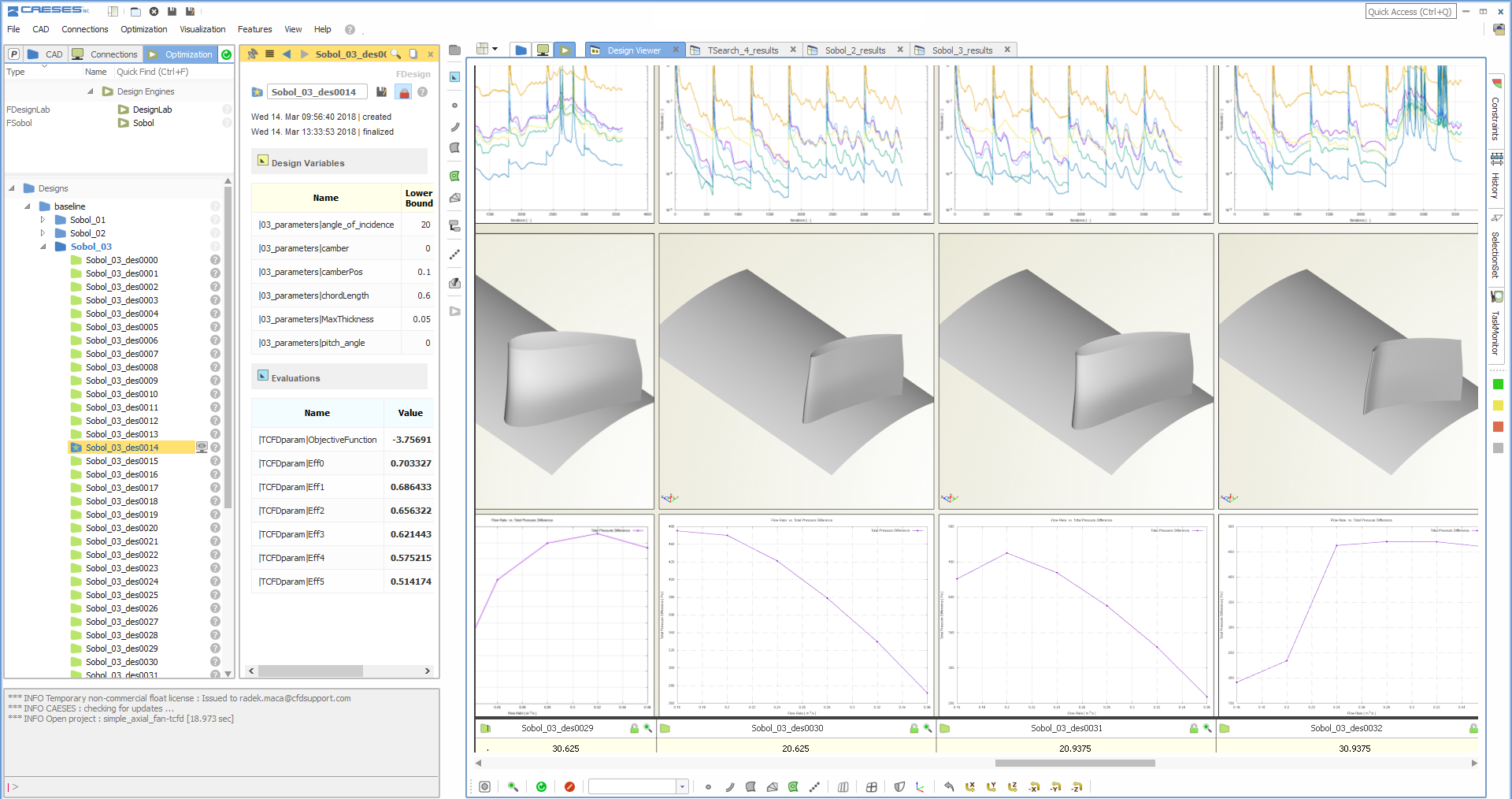
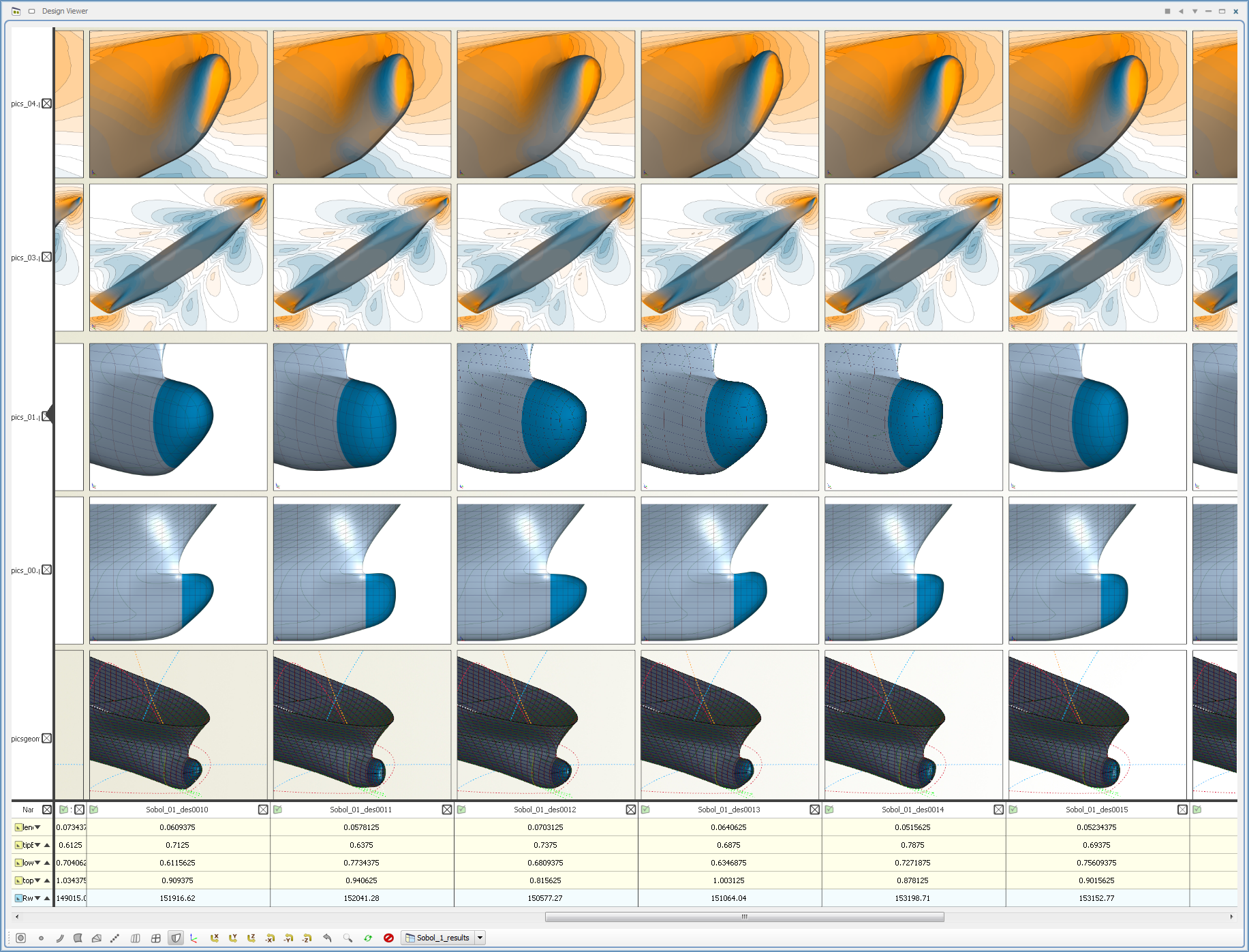
Doing these kinds of geometry and validity checks is a typical task in challenging engineering projects, to also check the design space and the shape variations that are created. Here are a few more pictures of the design viewer — note that the last ones also show some CFD results:
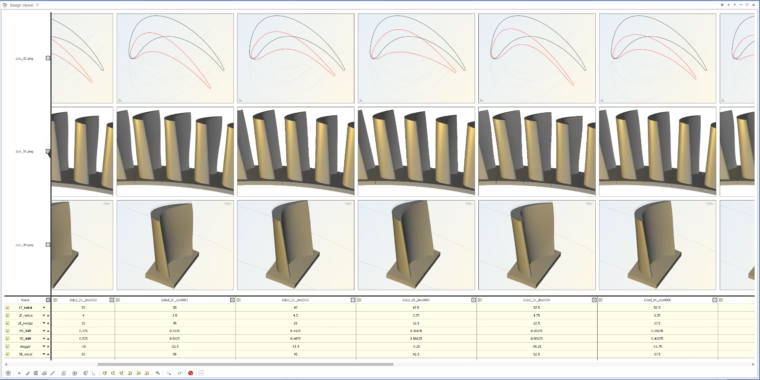
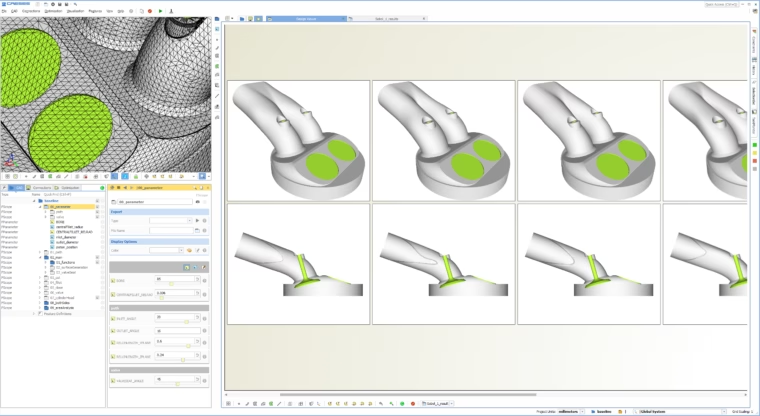
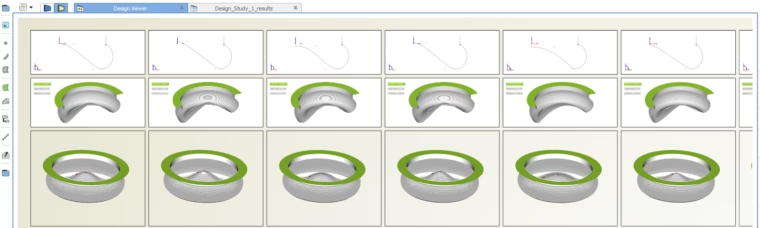
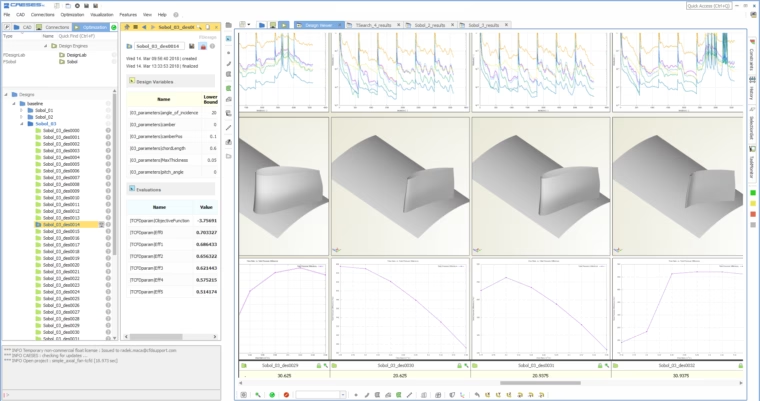
Comparison and assessment of generated design candidates in CAESES
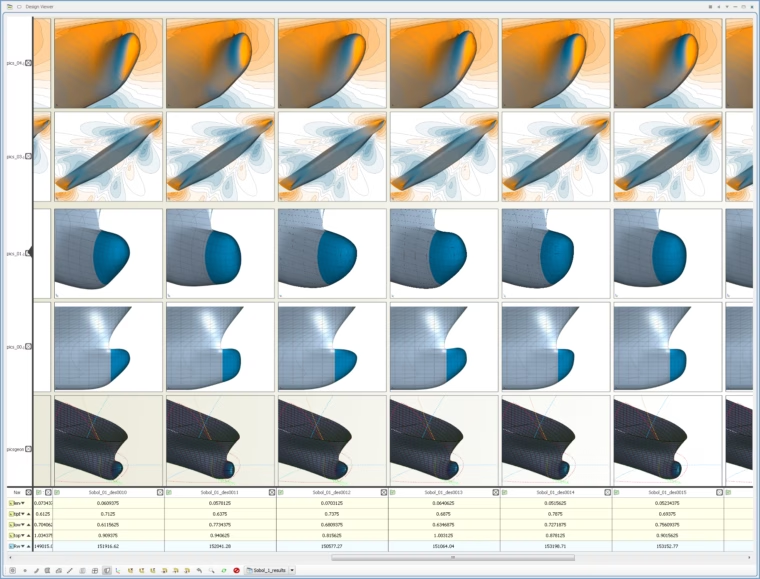
Follow Us
If you are interested in topics like this and in simulation-driven design optimization in general, then sign up for our newsletter. Don’t worry, we won’t bother you with too many emails. Of course, you can unsubscribe at any time :-)