Creating a Manual Variant
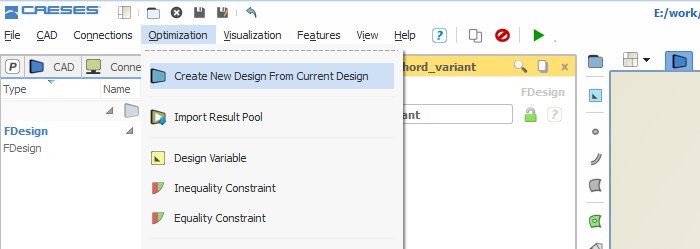
As you may already know, CAESES® is an engineering software for creating and assessing new design candidates. Compared to other solutions in the market, CAESES® is the only one that really specializes in smoothly bringing together CAD and variant management for CFD engineers. Most of our videos and tutorials describe how to run fully automated design studies and formal optimizations — since this is really the fun part and the main purpose of CAESES®. However, you can also immediately create a new manual design variant which gets based on a current design. There is a menu entry for this task in the CAESES® user interface:
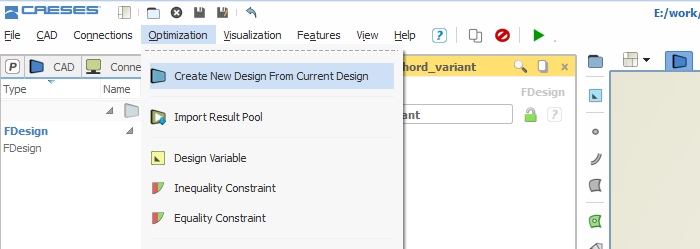
Create a new design from the current one
Once you have created a new design variant, you can start modifying it. Switching between the different designs is simply achieved by a double-click on the corresponding design in the optimization tree. Furthermore, you can create a variant from another variant and so forth. CAESES® takes care of the entire geometry management. CFD results for each variant can also be generated and automatically assessed for a variant. Finally, you can compare a variant to other designs, which is briefly shown in the next screenshot:
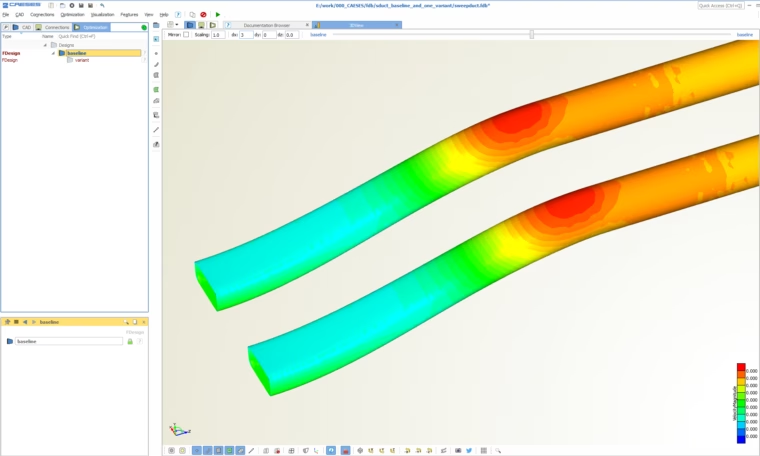
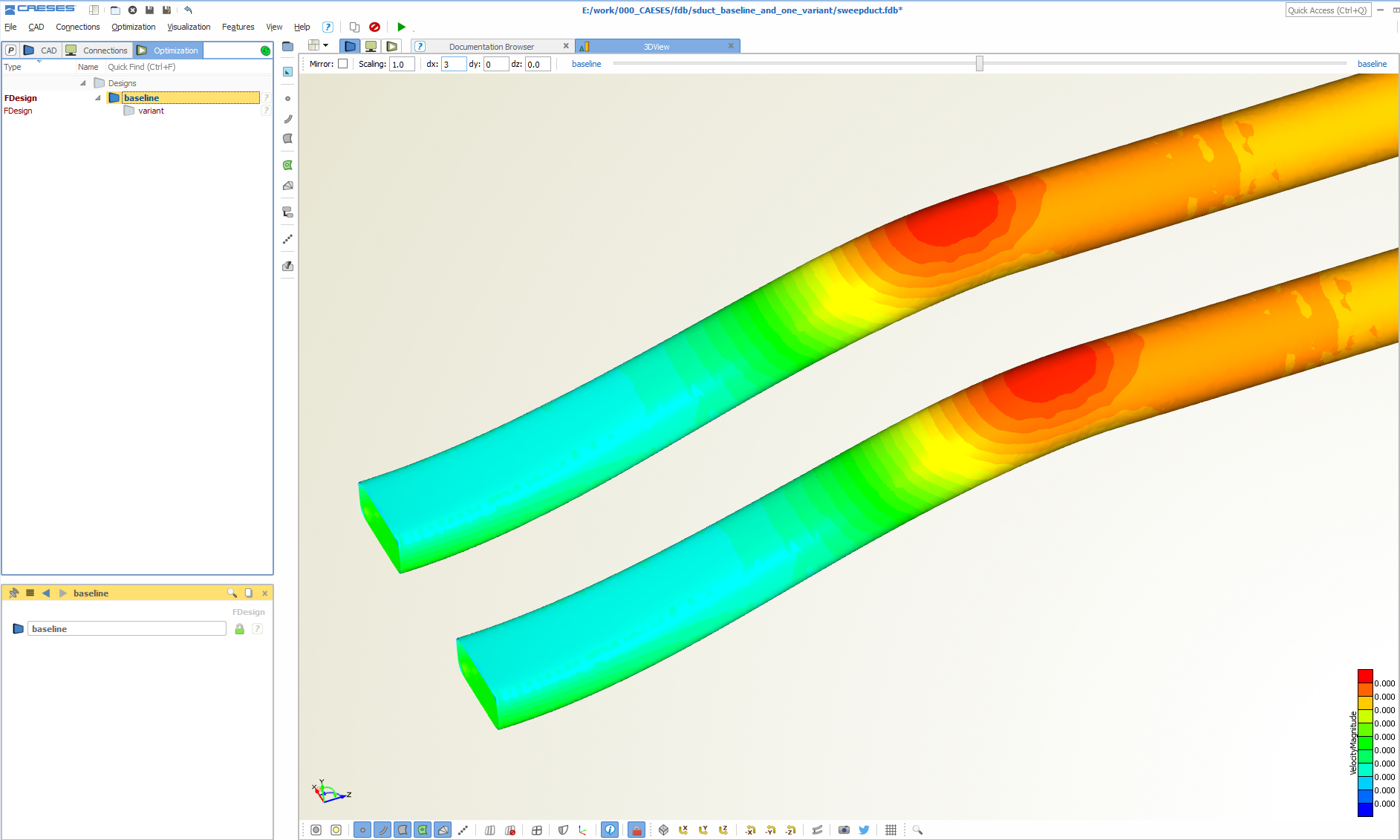
Compare geometry and simulation results of the baseline (upper duct) and a manual variant (lower duct)
Tutorial Video
To give you a better picture, we created the following short video. As an example, a new design variant of an axial fan gets created and modified. Switching back to the baseline design is also part of it. Lean back and enjoy!
How to Create a Manual Variant
More Information
Check out our section for video tutorials where you can find all kinds of interesting things you can do with CAESES®.