Best Designs and Pareto Frontier
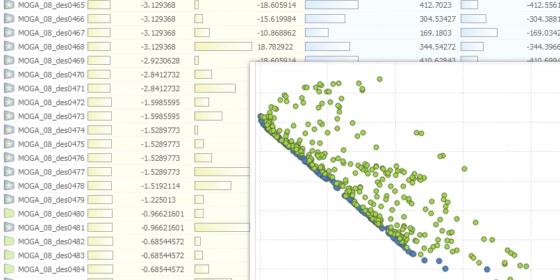
As some of our CAESES® users may already know, we really love to squeeze in small pieces of useful functionality into our maintenance releases. Why wait for a major release if our users can benefit from them right now? This time, we added the visualization and the highlighting of the best design candidates for version 4.1.2 (to be released in autumn 2016). Typically, our pro users run automated design studies and formal shape optimizations. Of course, they want to know which of the generated designs are the best candidates. If you cope with several objective functions, the so-called pareto frontier is also of interest (showing the best designs for conflicting objectives). So far, our users could check the design results table and sort it accordingly by clicking on the header title. Well, it was ok, at least for the situation where you have only one objective. But this was not sufficient for multi-objective optimizations, and we’ve had ideas for improvements on our list pretty much since CAESES® has existed. So finally we spent one sunny day in July 2016 on the technical implementation and some new icon designs. Interested in the outcome? Here you go:
Object Tree
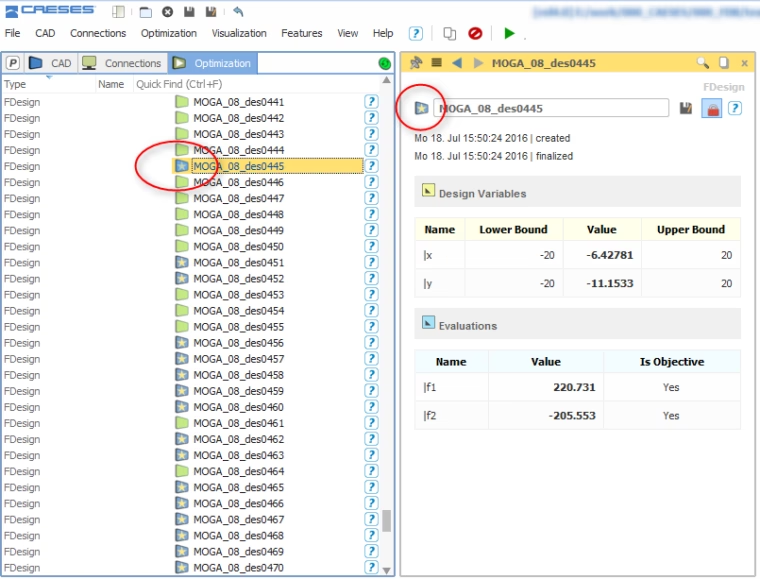
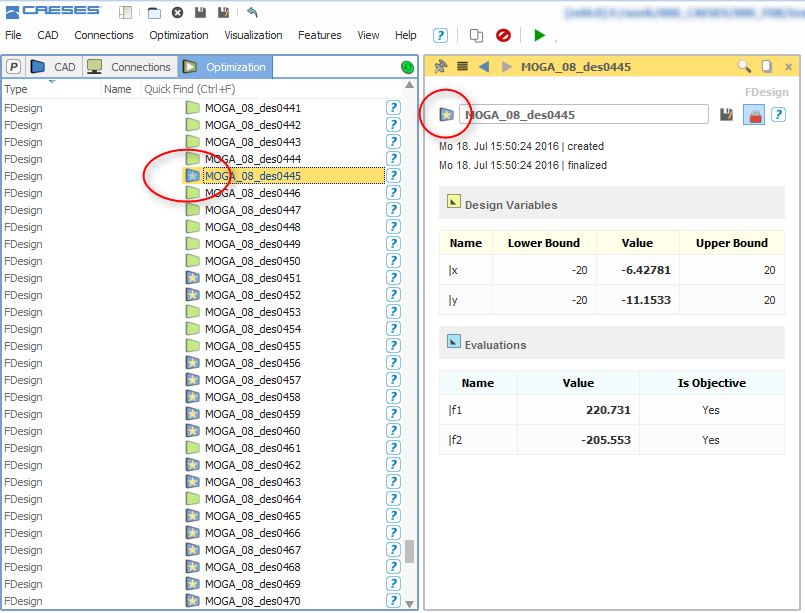
After a completed run, the best designs receive a new icon. With this, you can immediately detect interesting and relevant designs, to analyze them or to use them e.g. as basis for another local optimization.
Design Results Table
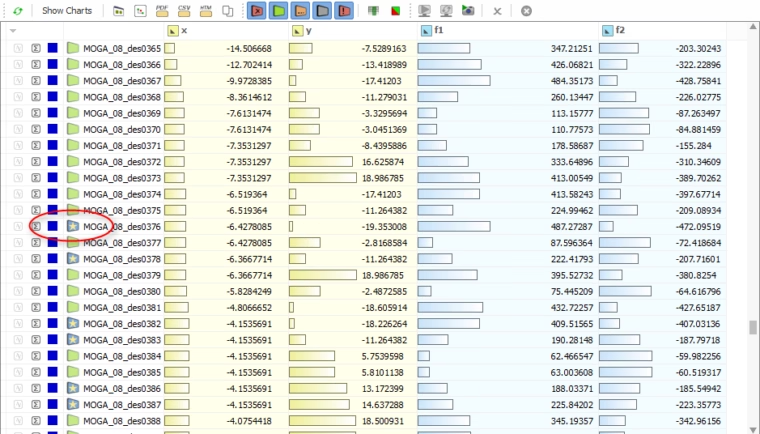
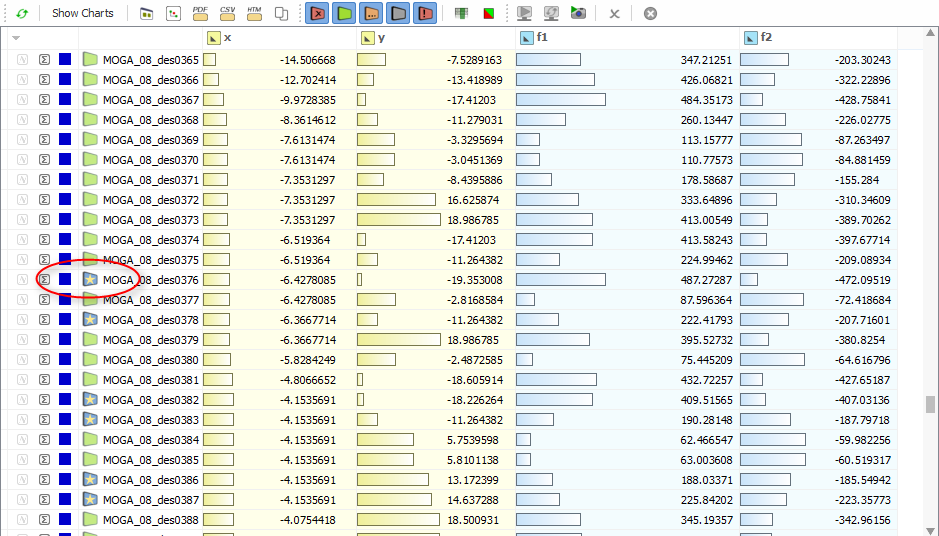
In the design results table, the best designs receive the same new icon as well. Note that we have simplified the icon for valid designs — it lost the check mark, which gives you a cleaner overview.
Charts
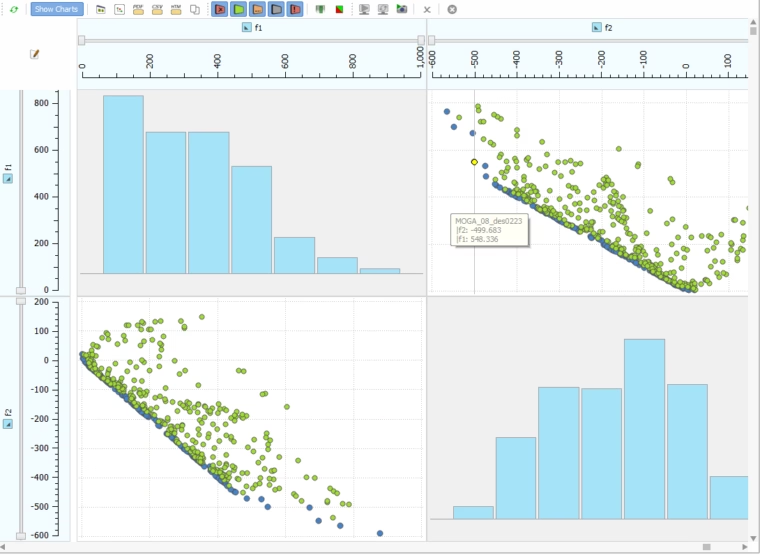
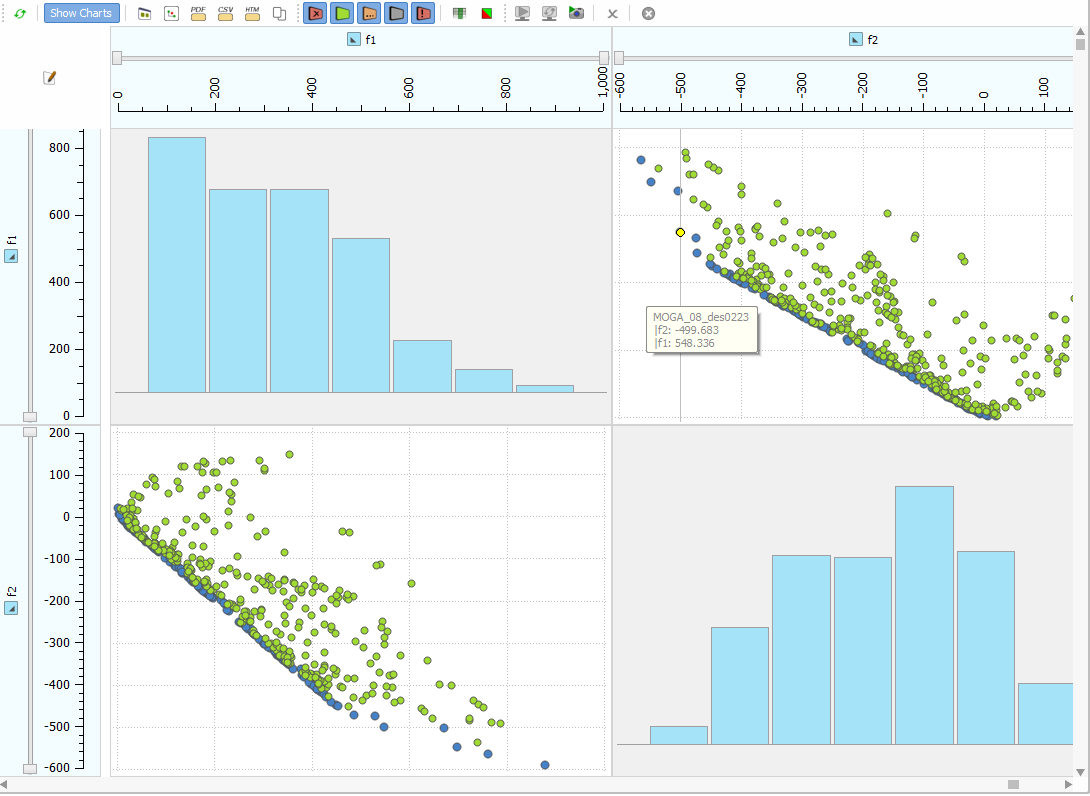
Now the pareto designs have their own distinct blue color in the charts. This allows you to create pareto-plots automatically without any additional user interaction. Note that the valid designs are colored green, and the invalid ones (violating a constraint) are colored red.
Design Studies
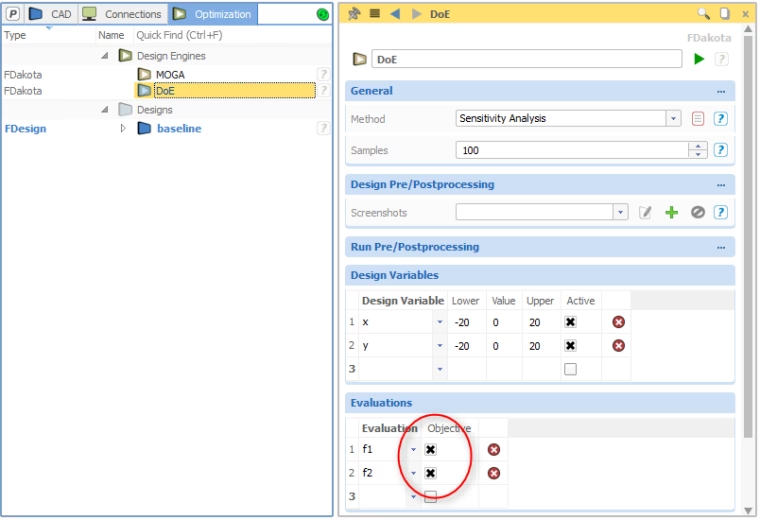
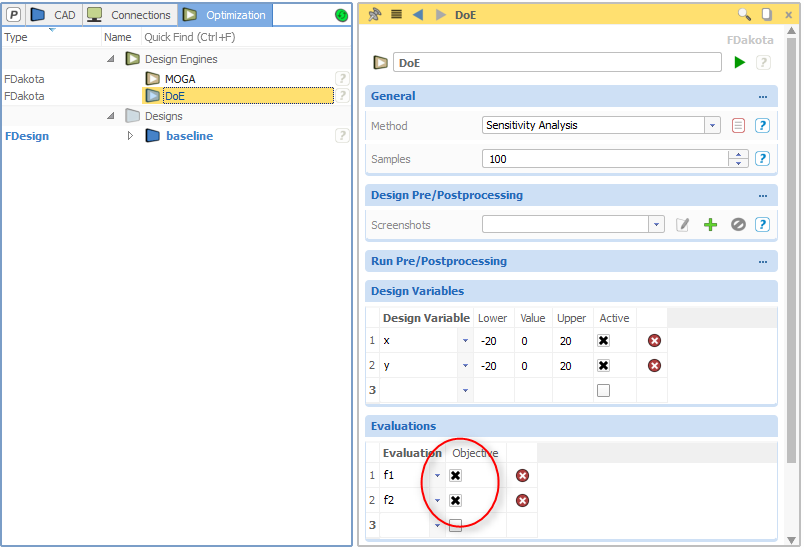
The functionality described above is also available for Design of Experiments (Sobol, Latin Hypercube, …) and simple parameter studies. Just set and activate the objectives for the chosen design engine. CAESES® takes this information into account and shows you the best designs of your study right after the run. Until now, users haven’t been able to set objectives for parameter studies.
More Information
Thanks to our users who haven’t stopped pushing this topic again and again. We hope you’ll like this first version, any feedback or ideas on how to improve this are highly welcome.